Managing player profiles and teams for tournaments in ggLeap
For players and teams to register for competitions, manage schedules, and showcase their results, Player Profiles are available to use with the ggLeap Tournament Feature!
Creating a Player Profile
Any player can sign up to create a Player Profile for participating in tournaments and leagues at https://players.ggcircuit.tourneybit.com/sign-up.
Signing in
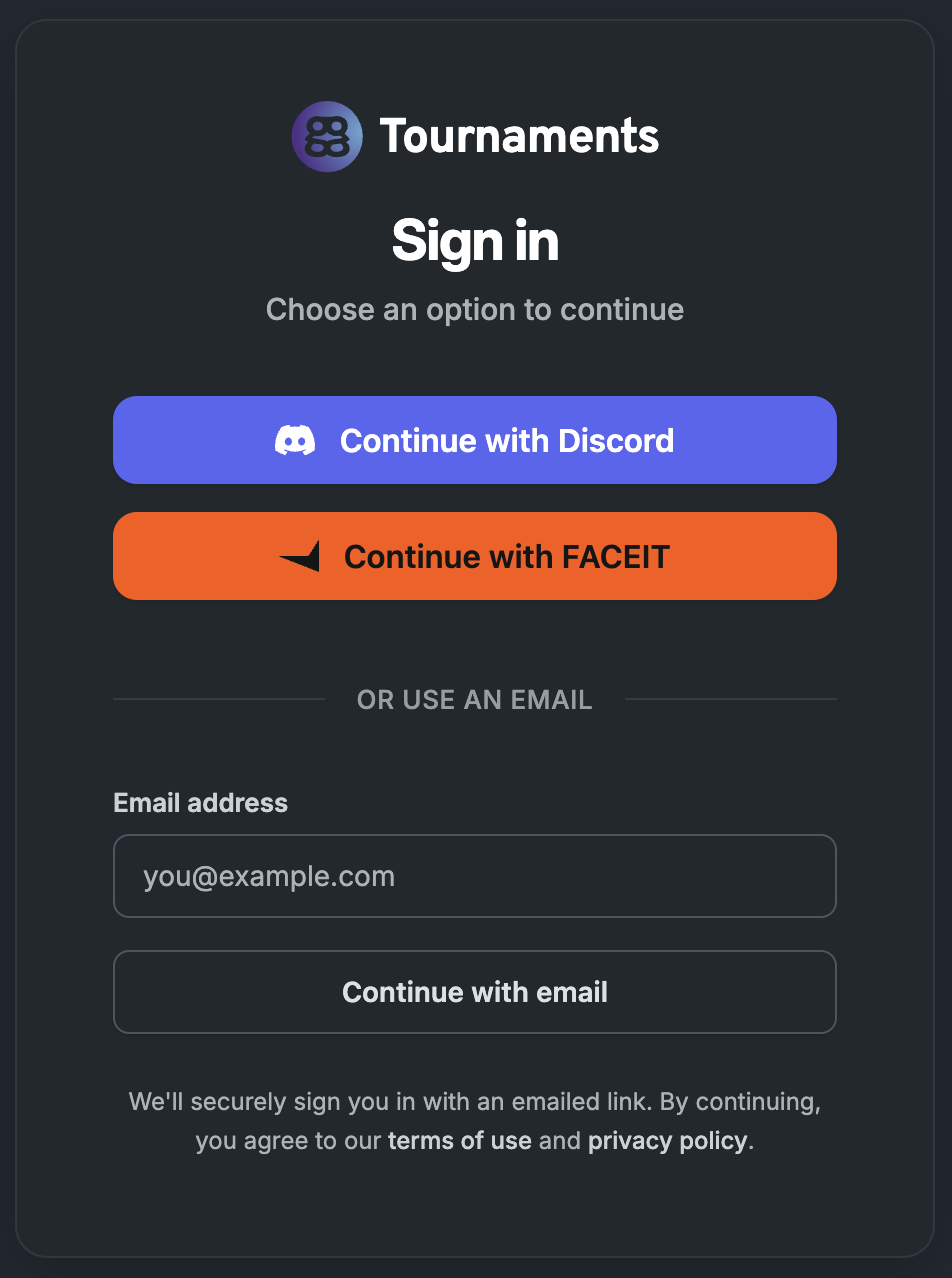
You can sign in to your Player Profile at https://players.ggcircuit.tourneybit.com/sign-in. Multiple sign-in methods are supported.
Supported sign-in methods
- Discord (third-party) - Sign in securely with your Discord profile
- FACEIT (third-party) - Sign in securely with your FACEIT profile
- Email address - Sign in securely via a magic link sent to your email address
- After submitting your email address, click or tap the link sent to your inbox
- ggCircuit - In some registration contexts, you can sign in securely via a ggCircuit account
Your profile
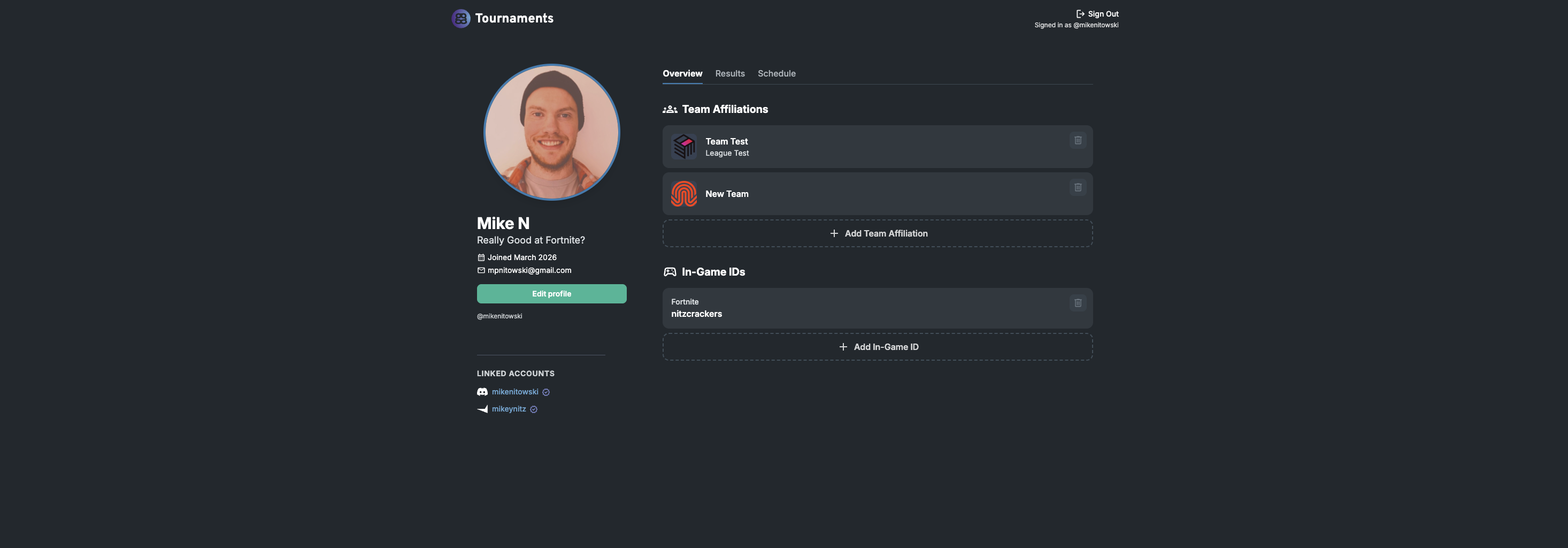
Your profile is a public place where you can display your team affiliations, in-game IDs, and tournament results. You can also view your schedule and manage your teams when signed in.
Profile URL
Your profile url is https://players.ggcircuit.tourneybit.com/@{username}.
Customizing your profile
You can customize items in your profile like your display name, tagline, in-game IDs, and teams.
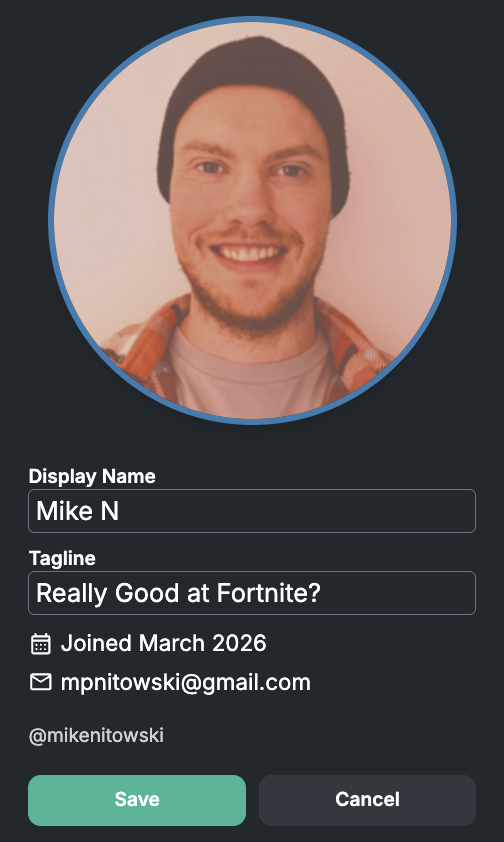
Editing display name and tagline
Press the “Edit profile” button and use the form to make any changes. Press “Save” when you have made your changes or “Cancel” to retain your previous info.
Uploading a new profile picture
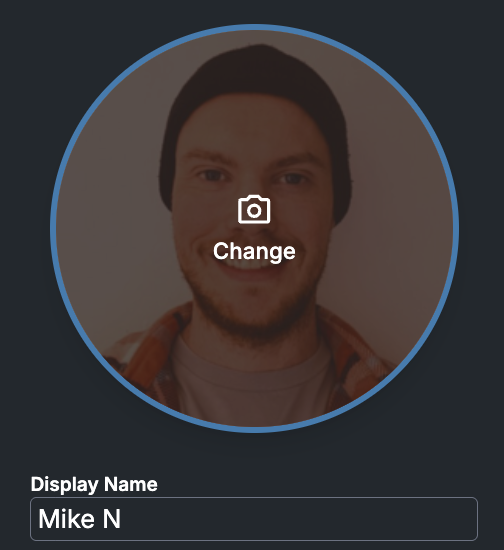
Click or tap on your profile picture (or initials) to upload a new profile picture
Adding a team (affiliation)
- To add/create a team, press the + Add Team Affiliation button
- To remove your affiliation with the team, press the trash can button in the corner of the item. The button icon will transform into a trash can with an X on it. Press the button again to confirm the removal.
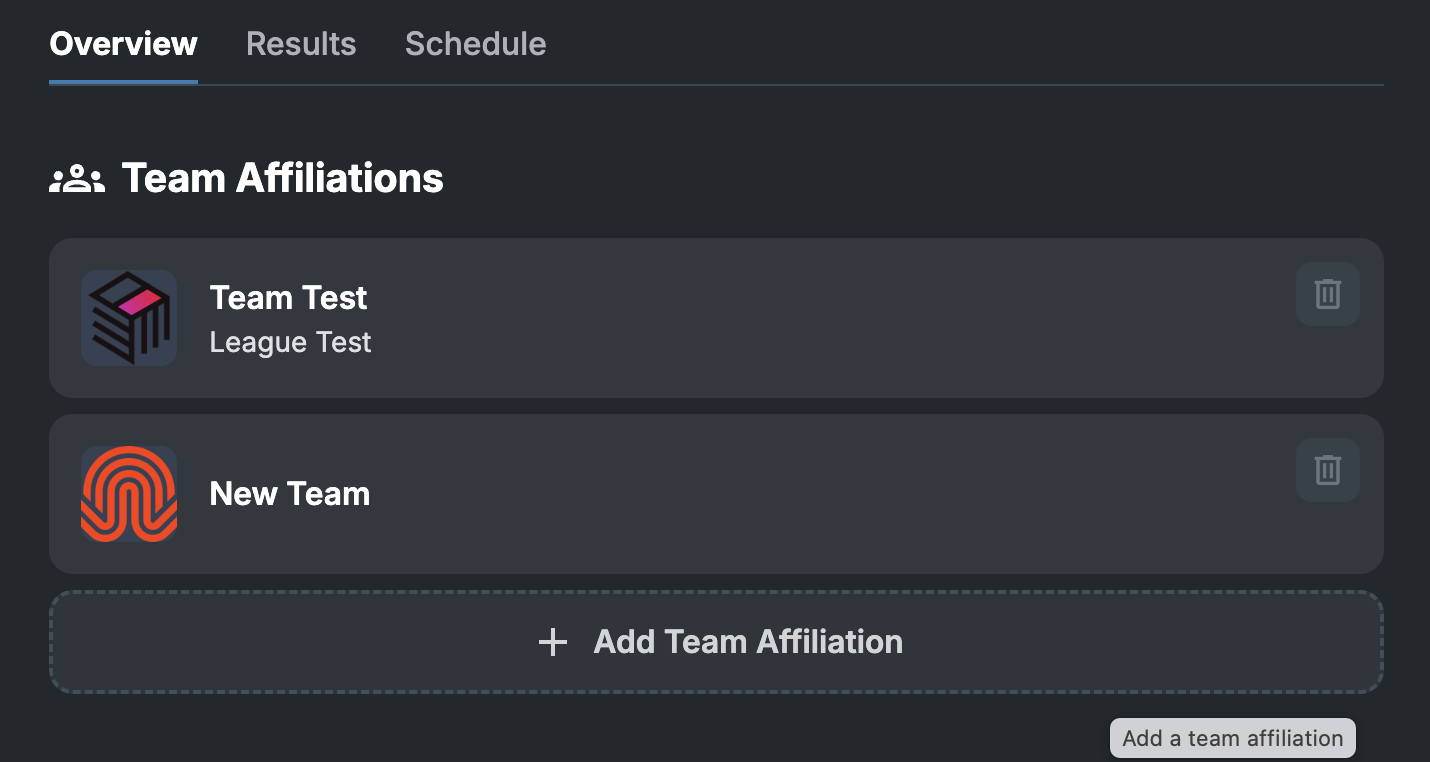
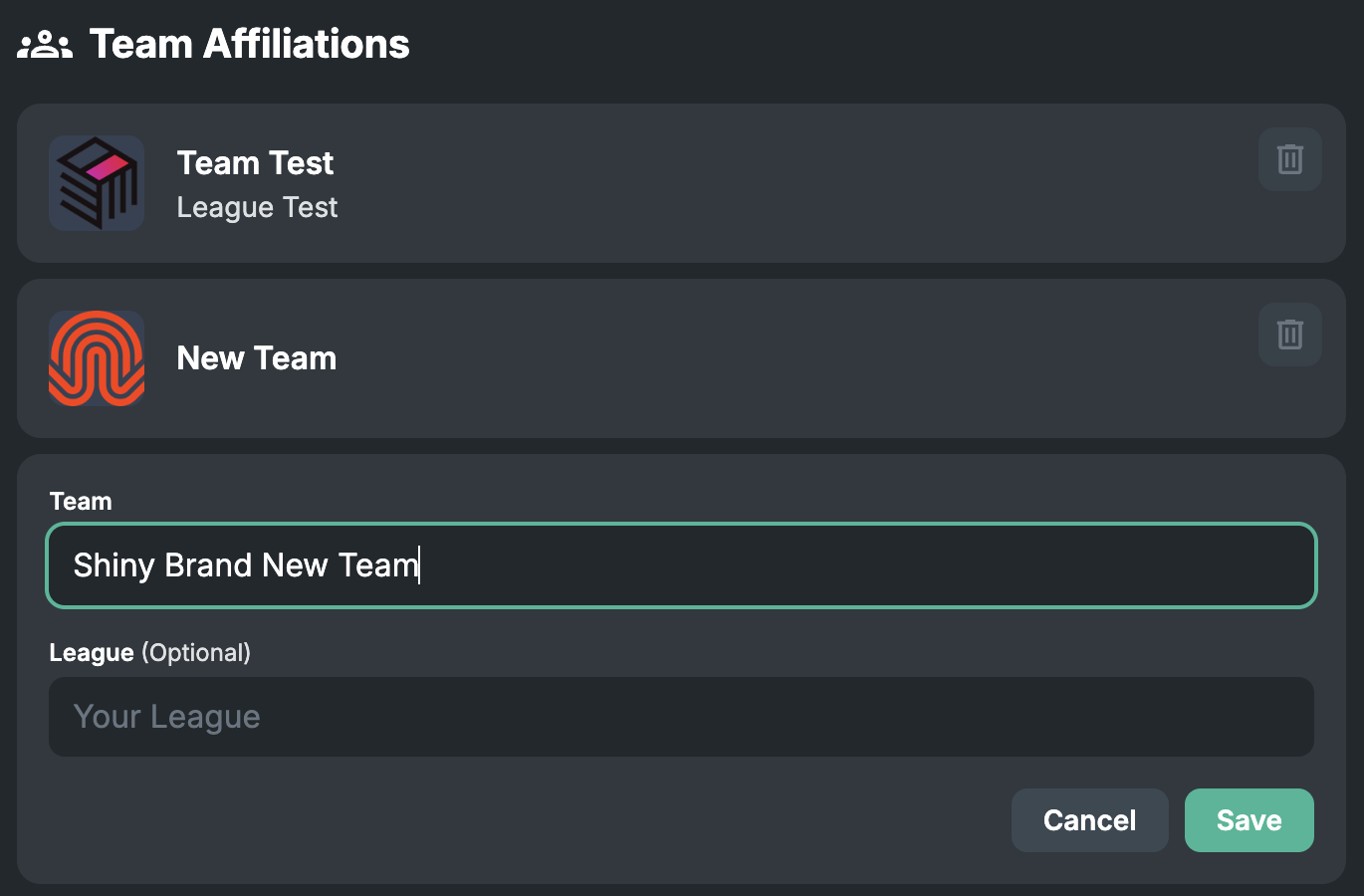
You can navigate to the newly created team by clicking or tapping it.
Editing in-game IDs
- To add an in-game ID, press the + Add In-Game ID button
- To remove an in-game ID, press the trash can button in the corner of the item. The button icon will transform into a trash can with an X on it. Press the button again to confirm the removal.
Linked accounts
Linked accounts are managed by the system, depending on how you have signed in and interacted with your Player Profile. Third-party accounts with the same email address are linked automatically.
Teams
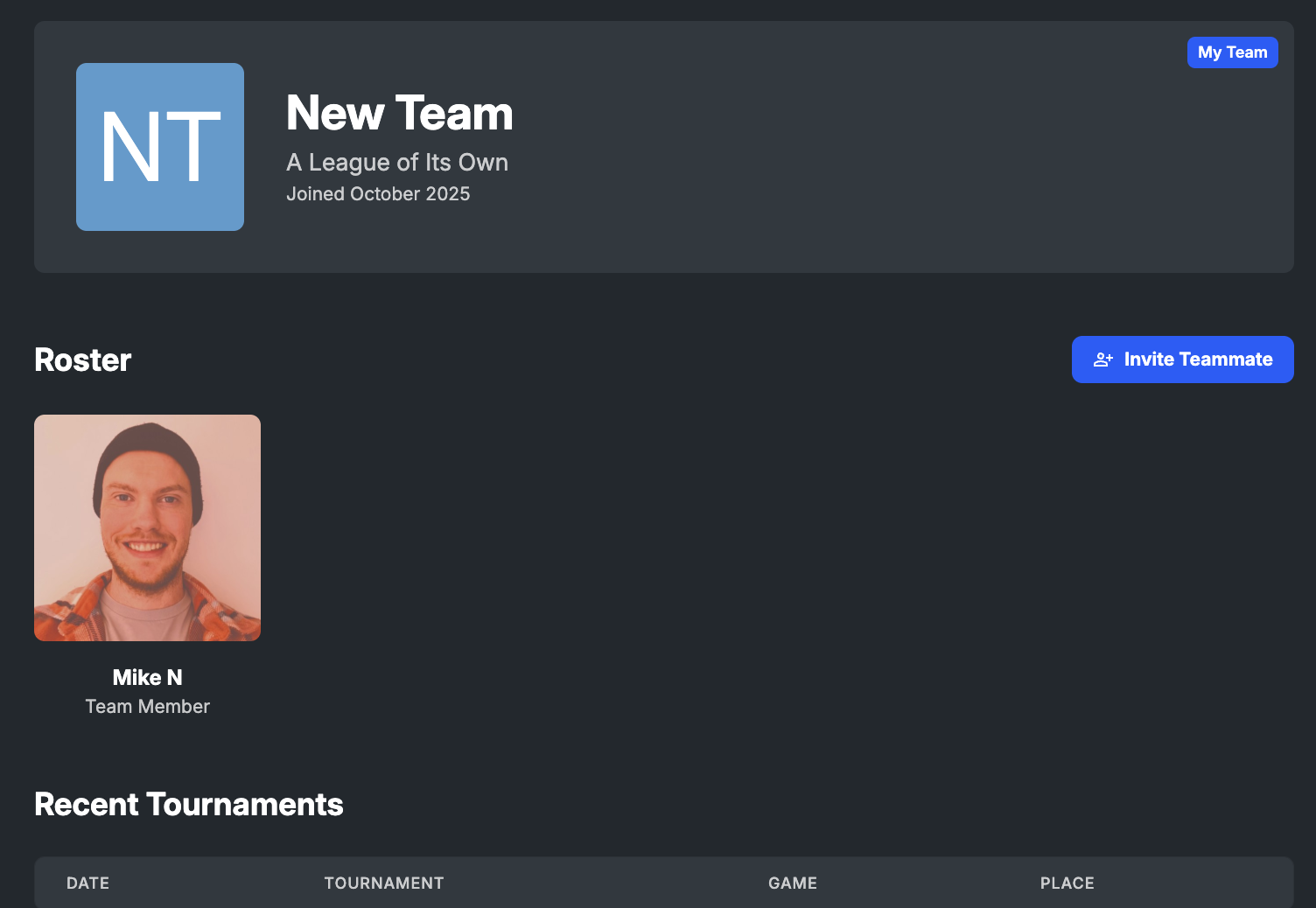
When you create a team affiliation in your profile, it automatically creates a Team Profile for that team. You can invite team members to this team as well as use the team to register for tournaments, view the team-specific schedule, and display tournament results for the team.
Inviting teammates
You can invite teammates via the “Invite Teammate” button.
You can either send them an invitation email or copy a link to share with them directly.
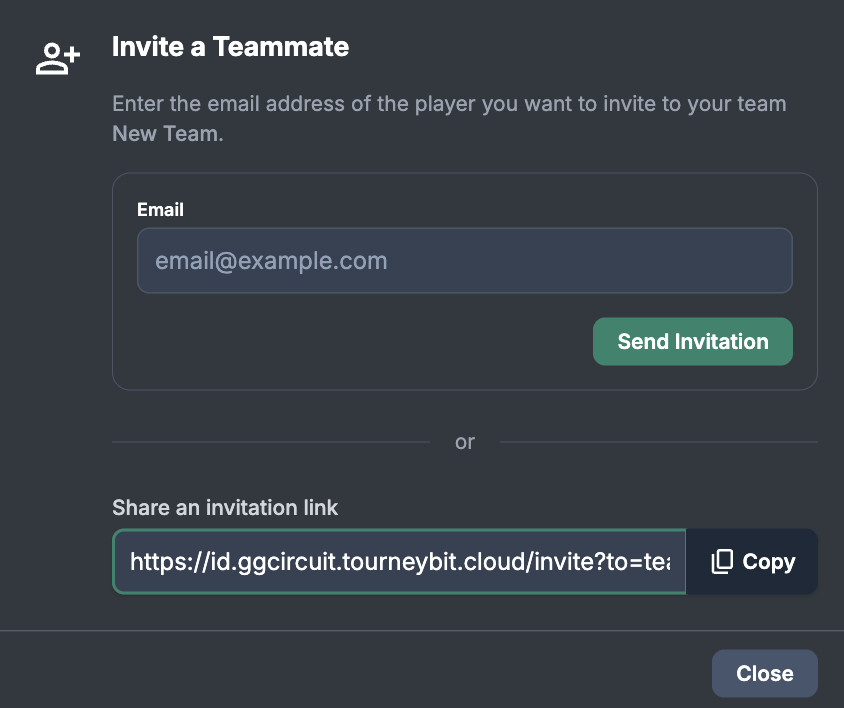
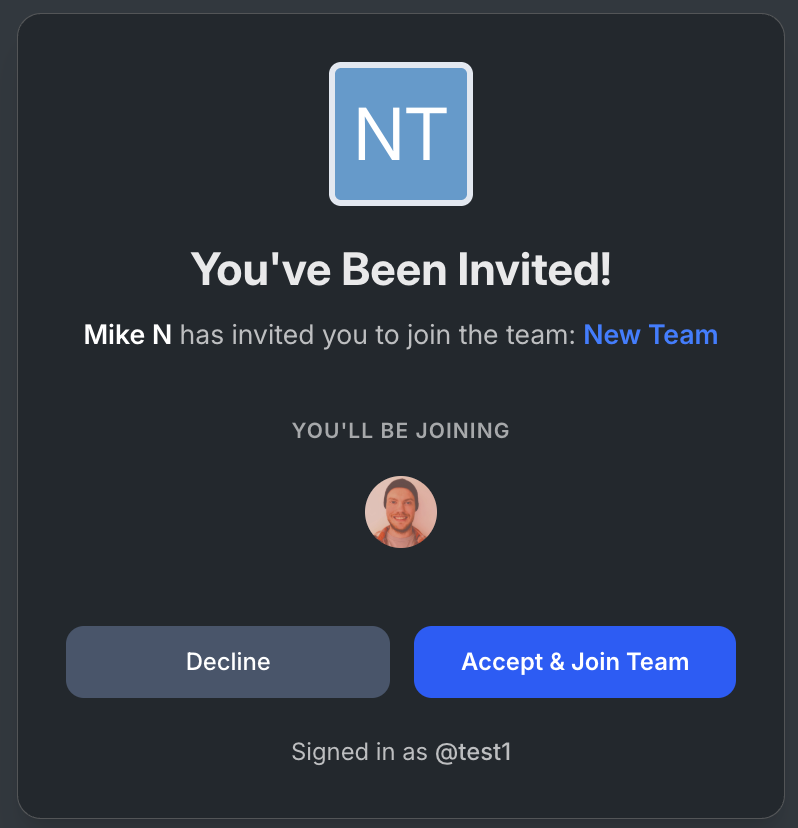
After a teammate accepts the invite, they will be added to the team.
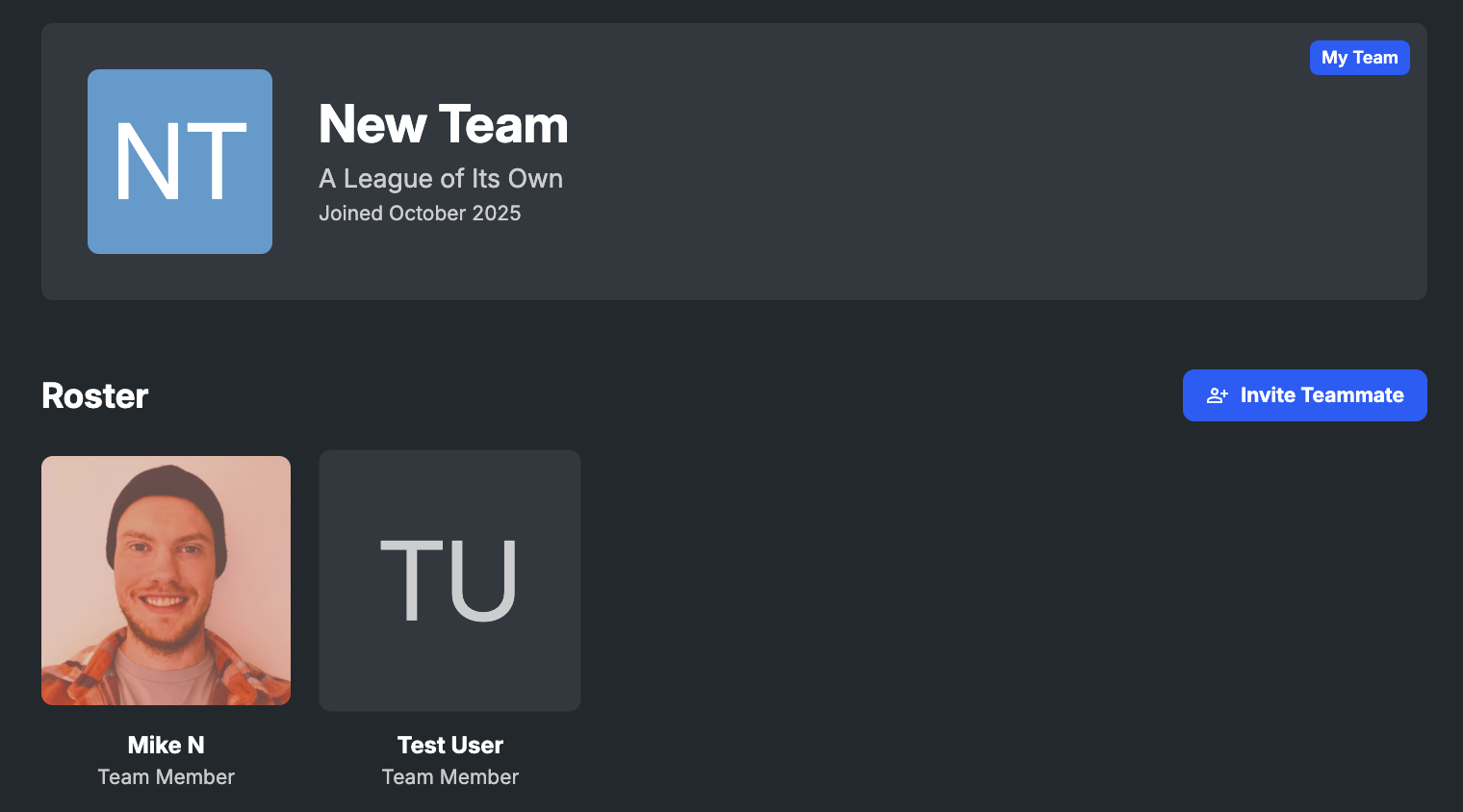
Removing yourself from a team
To remove yourself from a team, navigate to your main profile page and remove the related team affiliation.
Registering for tournaments
When joining a tournament via a QR code, a landing page, or a direct registration form link, you will be prompted to sign in to your Player Profile if you are not already signed in.
After you sign in (or if you are already signed in), some of your profile data will be pre-filled into the registration form. You can edit this information as necessary for the specific competition. Certain tournaments or leagues may require additional information before submitting your response to the registration form.
For a team competition, you will be required to select a specific team or add a new one. Depending on the competition, you can choose to create an impromptu team or register one of your existing teams.
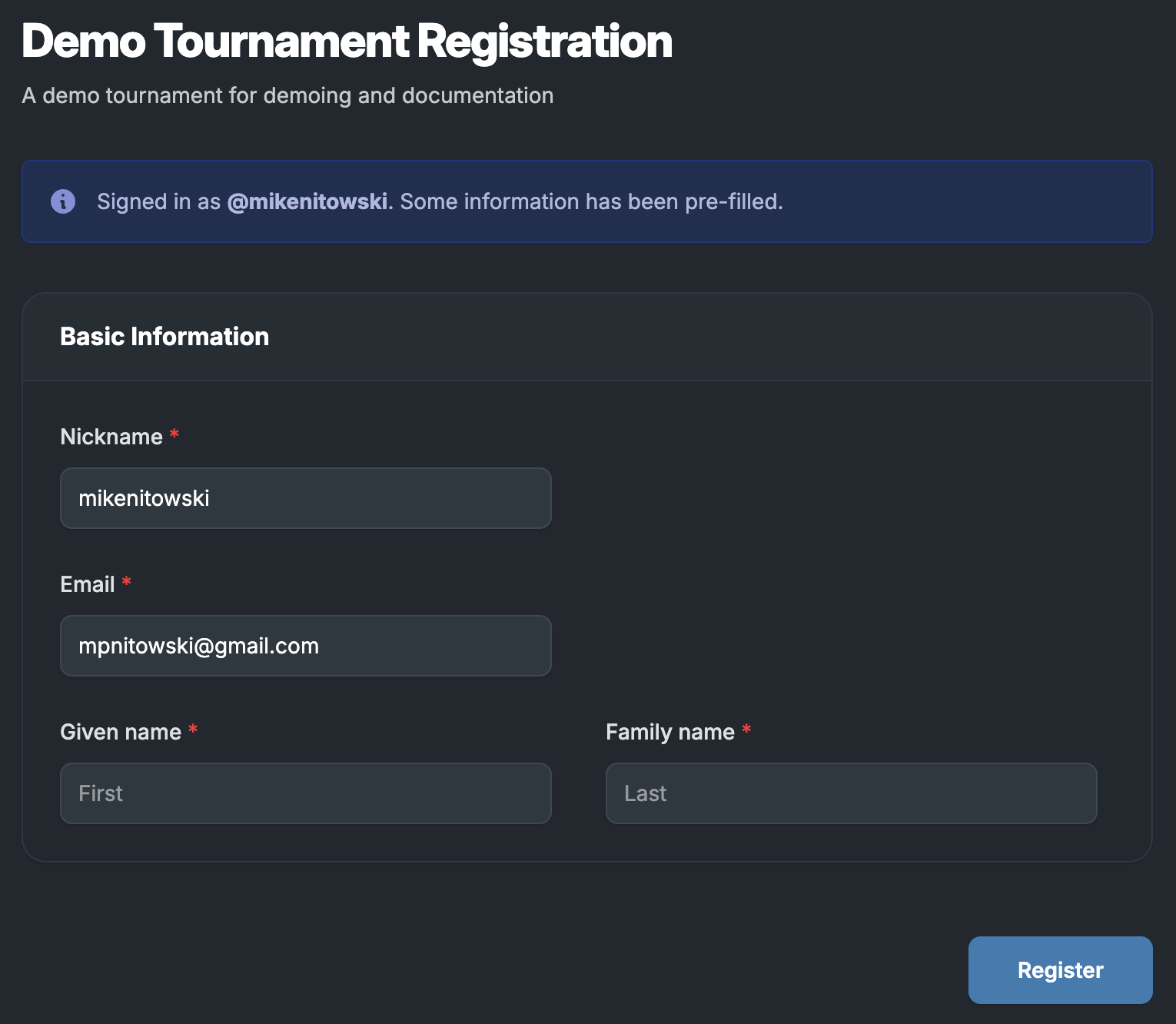
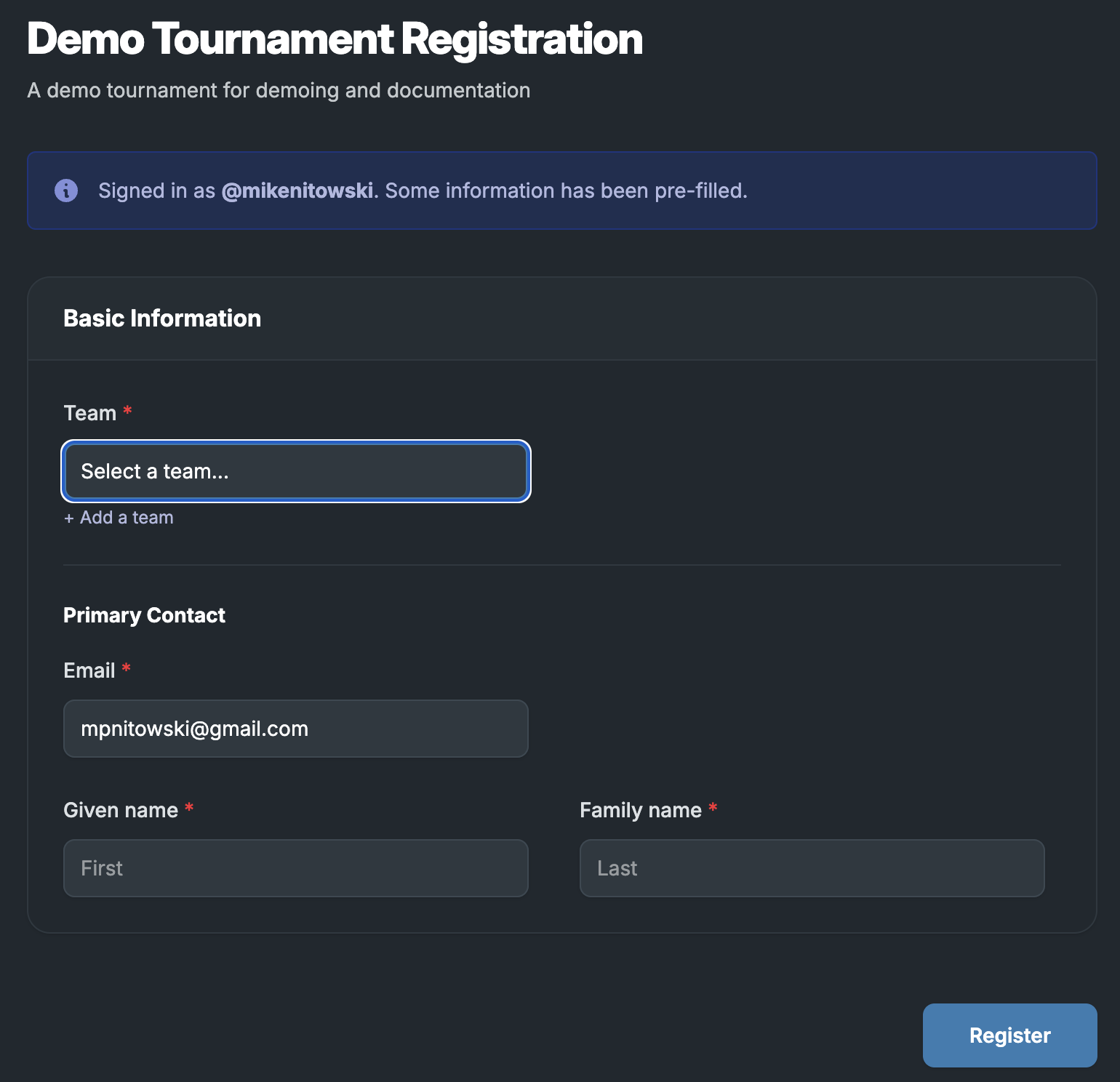
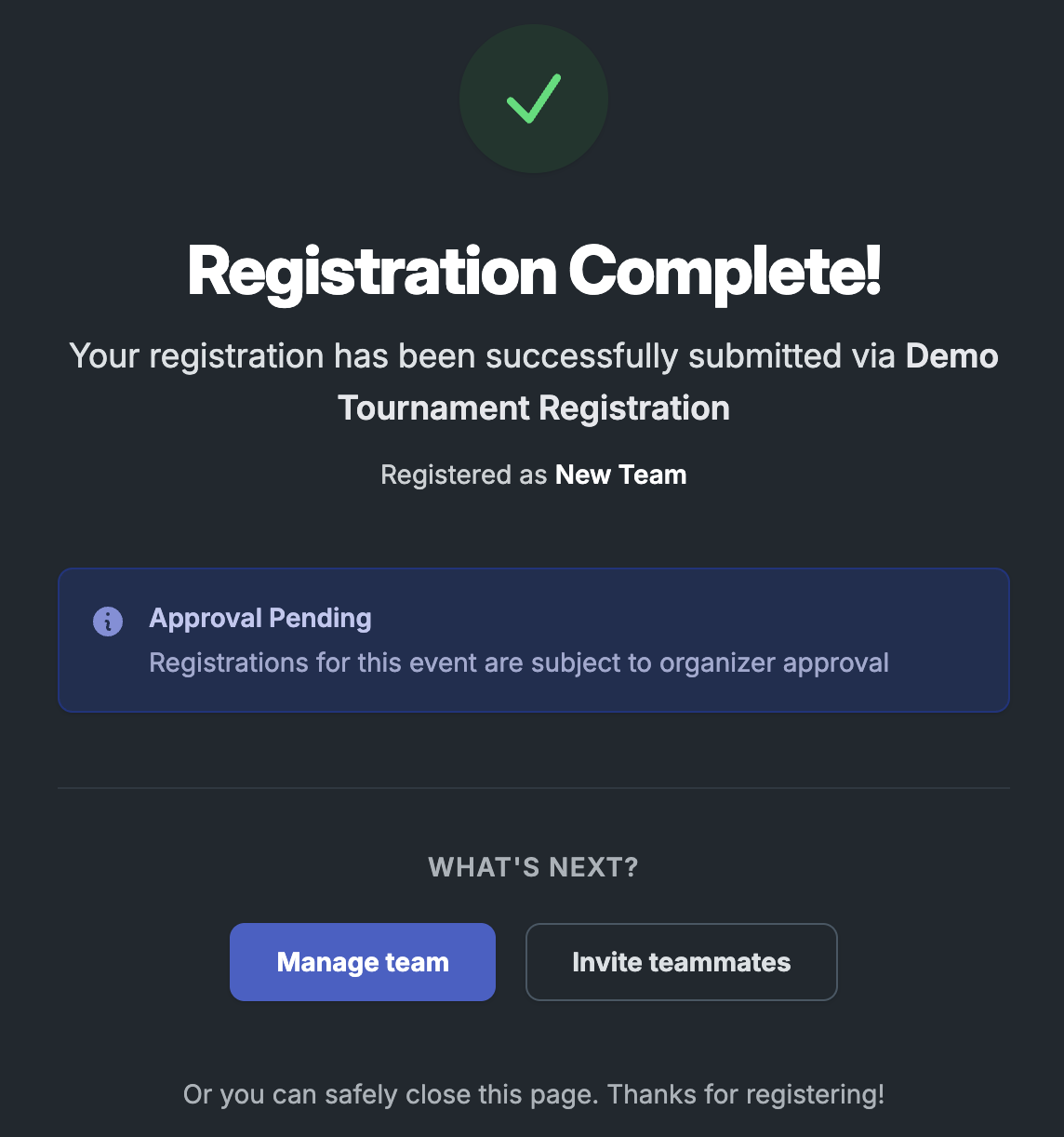
Once you submit your response, you will be redirected to a confirmation page and receive an email at the email address you used to register confirming your response was submitted. The confirmation page will indicate whether the competition requires organizer approval before being officially added to the league or tournament.
Player schedule
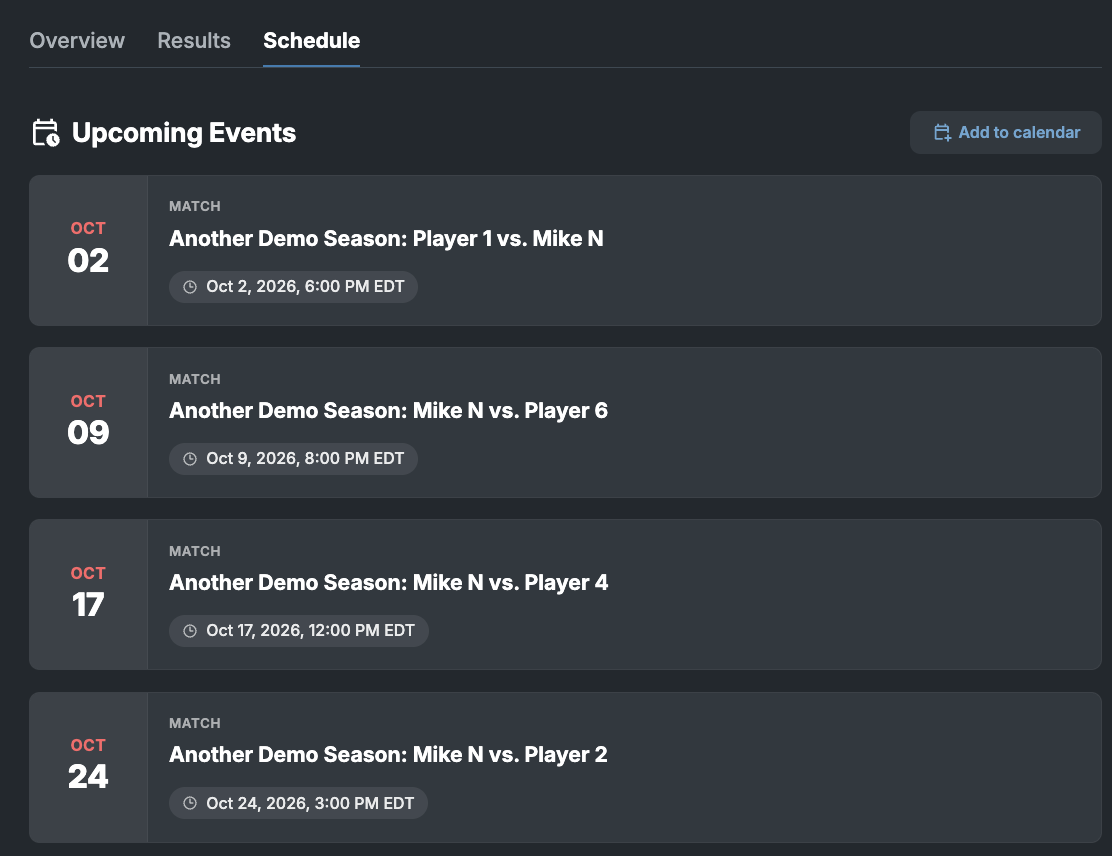
Once you are officially added to a tournament or match by the organizer, the event will appear in the “Schedule” tab of your player profile. You must be signed in to view your player schedule.
Exporting to calendar and calendar syncing
You can download your upcoming events and add them to any calendar supporting the iCalendar standard with the “Add to calendar” button. Because this button downloads is a static calendar export file, any event updates will not be synced to your calendar.
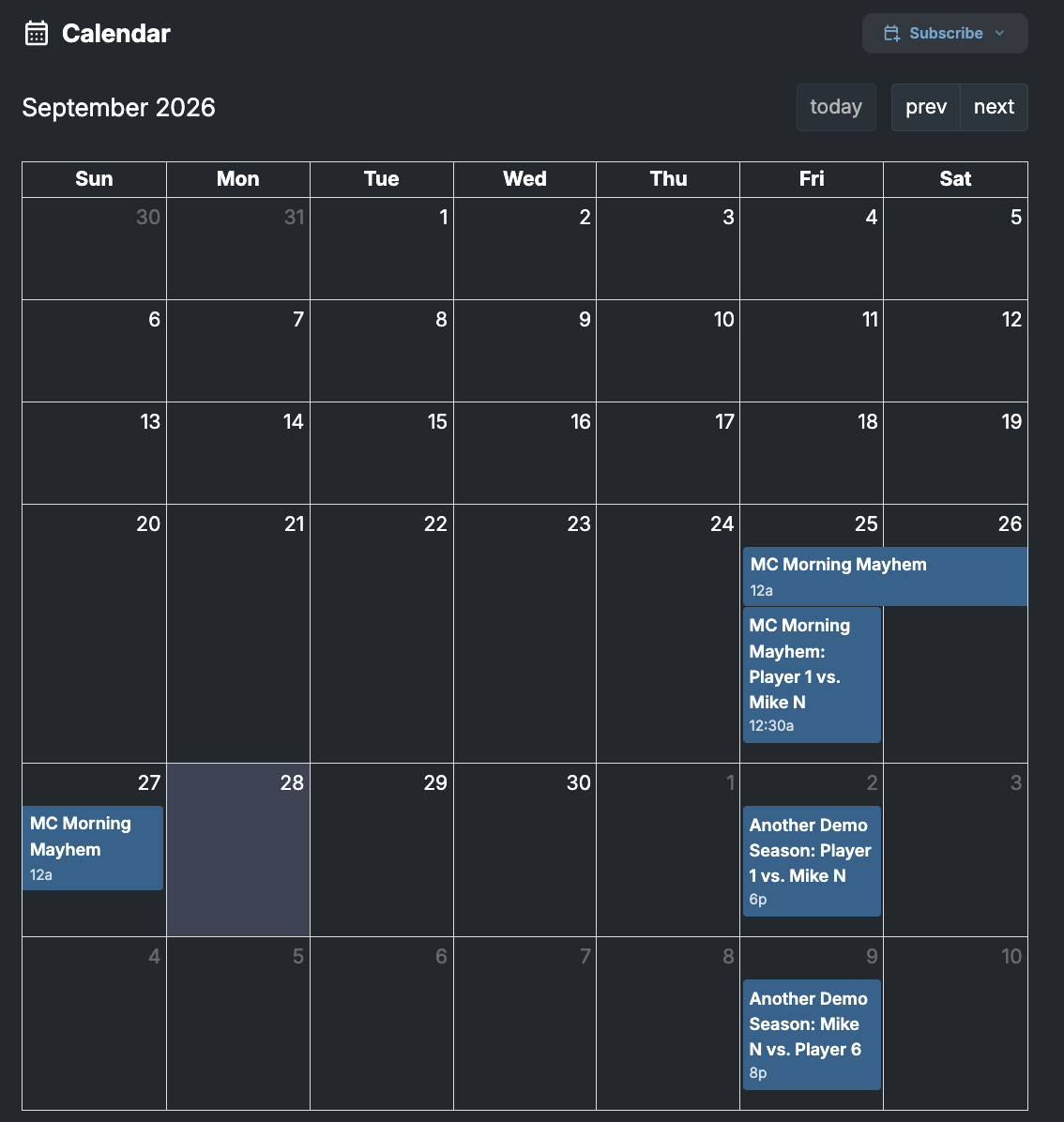
For calendar synchronization, find the “Calendar” section in the “Schedule” tab, press the “Subscribe” button, and select your calendar application. Only Apple’s Calendar app, Google Calendar, and Outlook Calendar are officially supported.
Match reminders
For scheduled matches in leagues and multi-day tournaments, you will receive a reminder email at your Player Profile email address within 24 hours of the match start time (typically around 8 hours before the match starts).
Tournament results
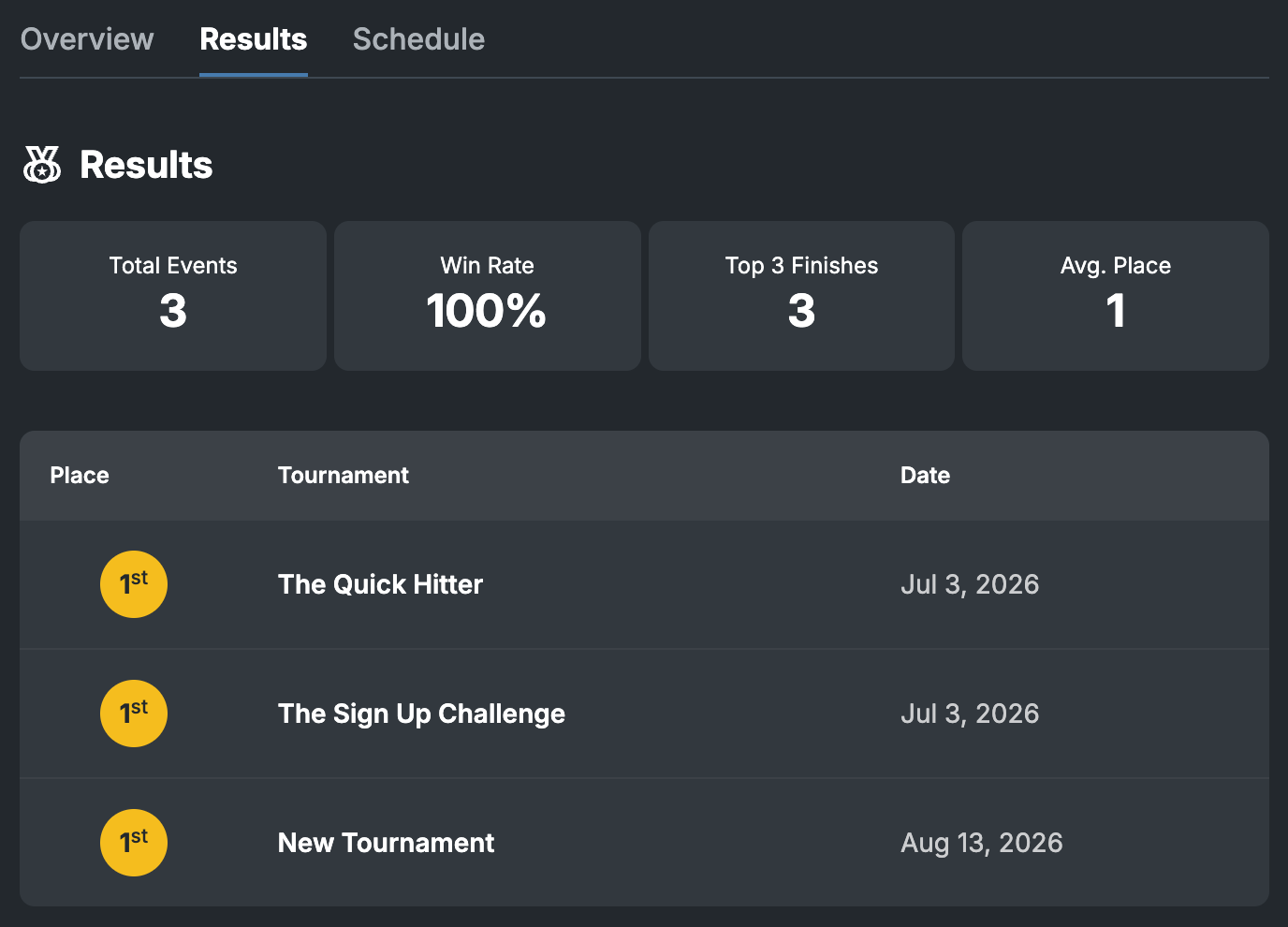
Tournament results will be posted publicly to the “Results” tab of your profile after the tournament is finalized by the organizer. This section also provides high-level statistics on your competition performance over time.
Privacy and data access
Profile data visibility
Certain profile data is publicly visible on your Player Profile page.
Public profile data
This data is always shared publicly in a Player Profile.
- Username and profile URL
- Profile picture (or initials)
- Display name
- Tagline
- Month and year joined
- Teams and team membership
- Any in-game IDs added
- Tournament results
- Internal user ID and URL
Visible to you only (in profile)
This data is only visible in your profile when you are signed in and viewing your own profile.
- Email address
- Linked third-party accounts
- Schedule and calendar
Data access and deletion requests
Email privacy@tourneybit.com and cc privacy@ggcircuit.com with the exact nature of the request, including your Player Profile URL and whether it is a data access or deletion request.