
Running a tournament in ggLeap
You can run tournaments directly in ggLeap with the Tournament Feature! This documentation is intended for admins and organizers running a tournament within ggLeap.
Finding the tournaments section
After signing into ggLeap, scroll down on the left sidebar and click on “Tournaments”, directly underneath Events with a medal icon above.
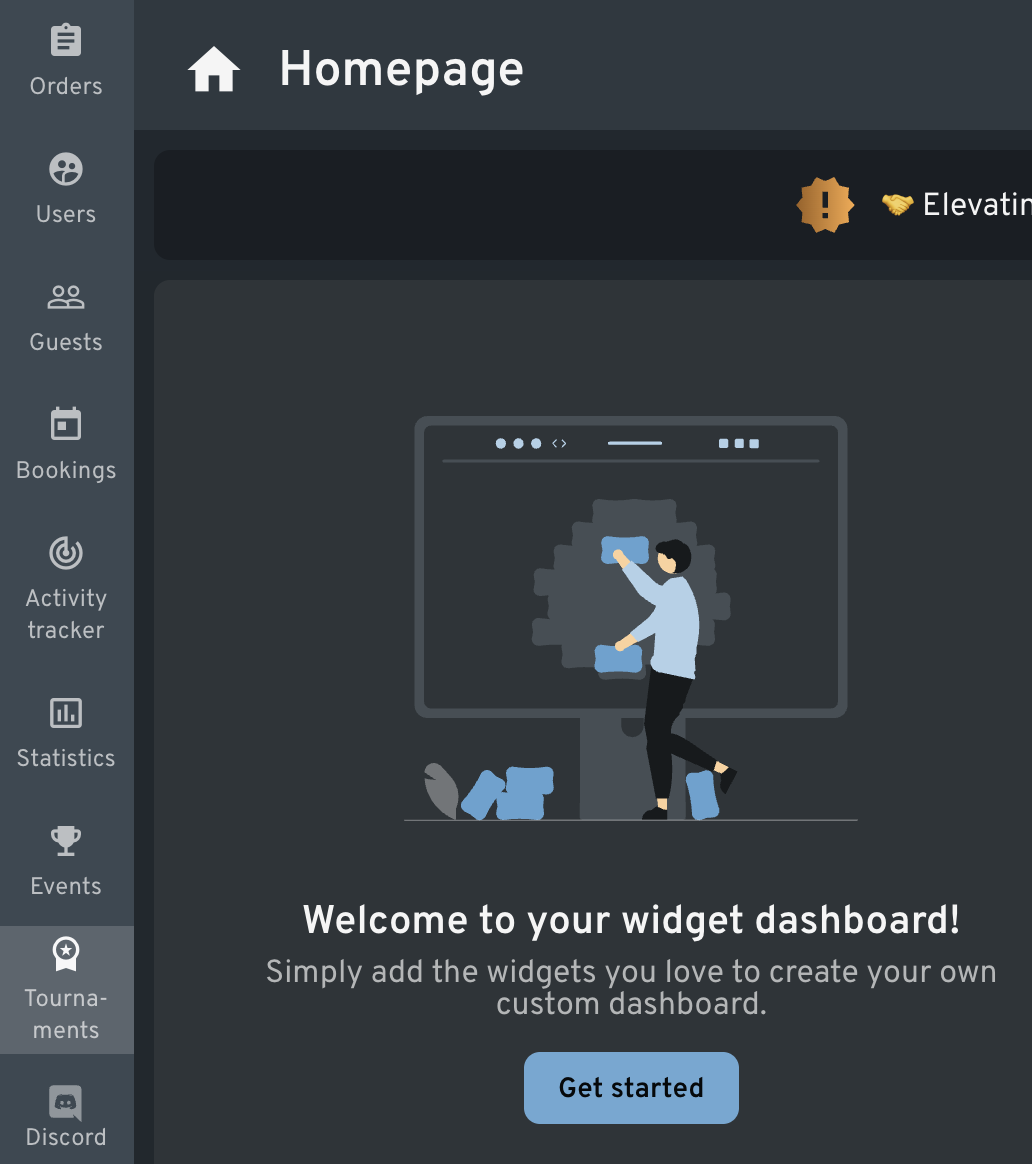
When you first open the Tournaments section, you’ll see a screen to start a new tournament.
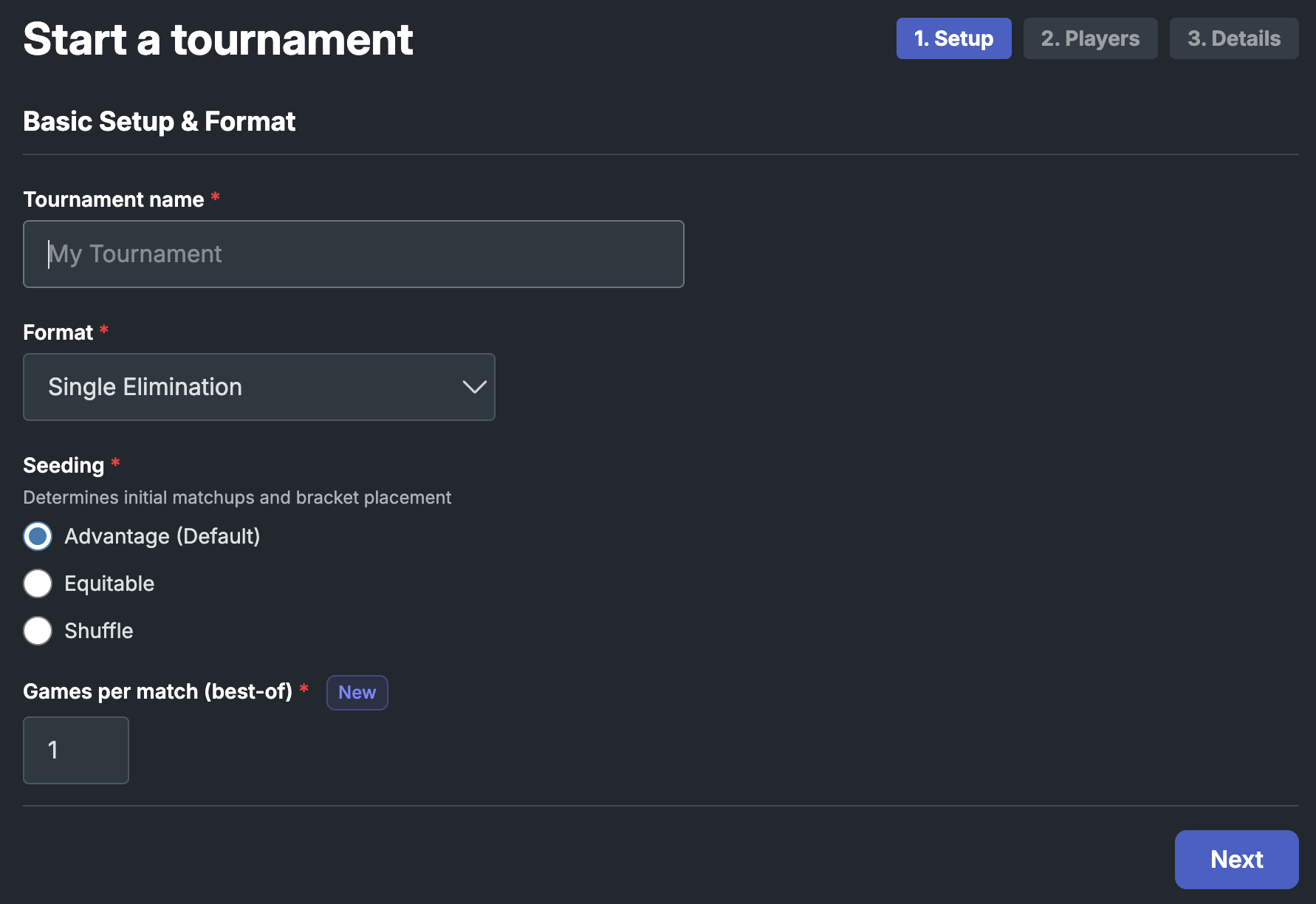
After starting one tournament through ggLeap, you’ll see a list of all the tournaments your center has started.
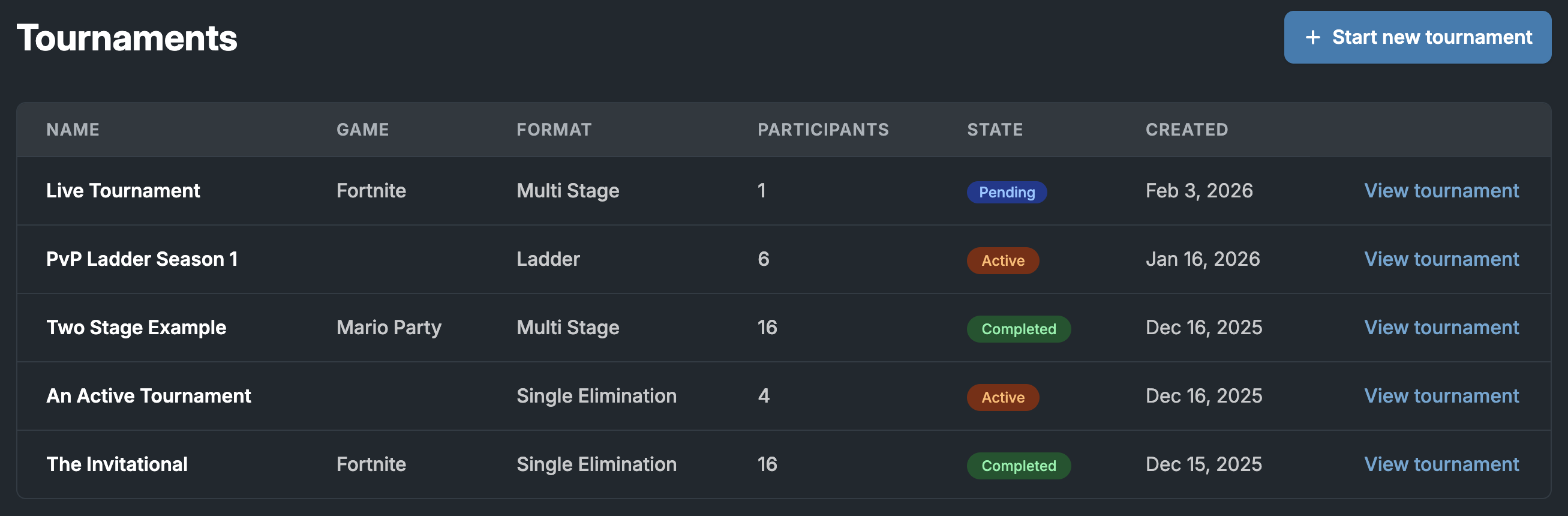
Starting a new tournament
To create a new tournament, provide the format of your tournament and how you want to add players.
Configuring settings
You are required to configure some settings before starting the tournament.
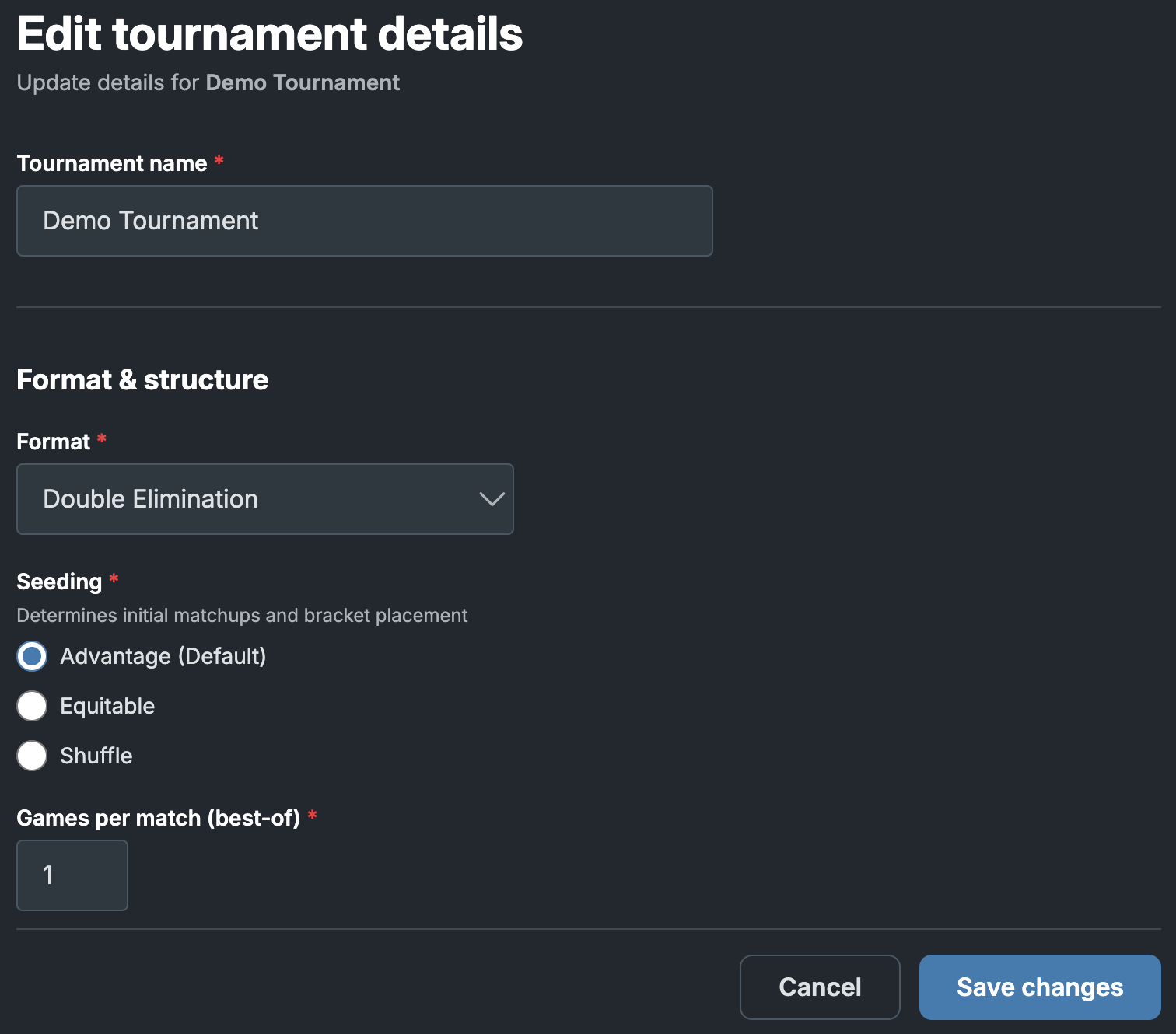
- Format: The structure of the tournament, determining how players are matched up and placed in a bracket or other competition structure
- Single Elimination: a simple knockout tournament, where players are placed in a bracket and are eliminated after a single loss
- Single Elimination with Consolation: a single elimination tournament where players with a loss get placed dynamically into a consolation bracket
- Double Elimination: a knockout tournament where players are eliminated after two losses, and are placed into a lower bracket after one loss where they still have an opportunity to win
- Round-robin: also known as all-play-all, a format where every player plays every other player, and the results are determined by ranking number of wins
- Swiss-system: players play similarly performing opponents in each round without eliminations, and the winner is determined by overall points
- Leaderboard: a points-based tournament where players are ranked according to how many points they have accumulated throughout the competition
- Ladder: a continuous competition where players challenge each other to move up in rank
- Two-stage: a combination of multiple tournament formats with a qualifier stage and finals/playoff stage
- The qualifier stage can be a group stage (groups > 1), where players play opponents in their assigned group and only the top ranked players in each group qualify for the finals/playoff stage
- Seeding: The method of placing players in a bracket or tournament structure based on how they are ranked prior to the competition
- Advantage: the most common method, where players with a higher pre-rank or “seed” have a significant advantage over their opponent (e.g. in an 8-player tournament, 1 plays 8, 2 plays 7, 3 plays 6, and so on)
- Equitable: a more niche method that gives players with a lower seed an easier path to progress in the tournament, and narrows the gap between seeds
- Shuffle: randomly shuffles players into the bracket
- Games per match (best-of): The number of games to play in each matchup, enabling keeping score for different games in a single matchup
Adding locations, players, and details
Before starting the tournament, you can provide the tournament name, the game being played in the tournament, the list of players, and locations.
Locations
Locations are physical or virtual locations where individual matches take place. Only specify locations if you want these to be automatically assigned as the tournament progresses. Manual location management will be rolled out in a future release.
Signup Link
Enables a shareable link for players to join the tournament with their player accounts. Check this box when you want to host a virtual sign-up sheet for players to join your competition
Signup Settings
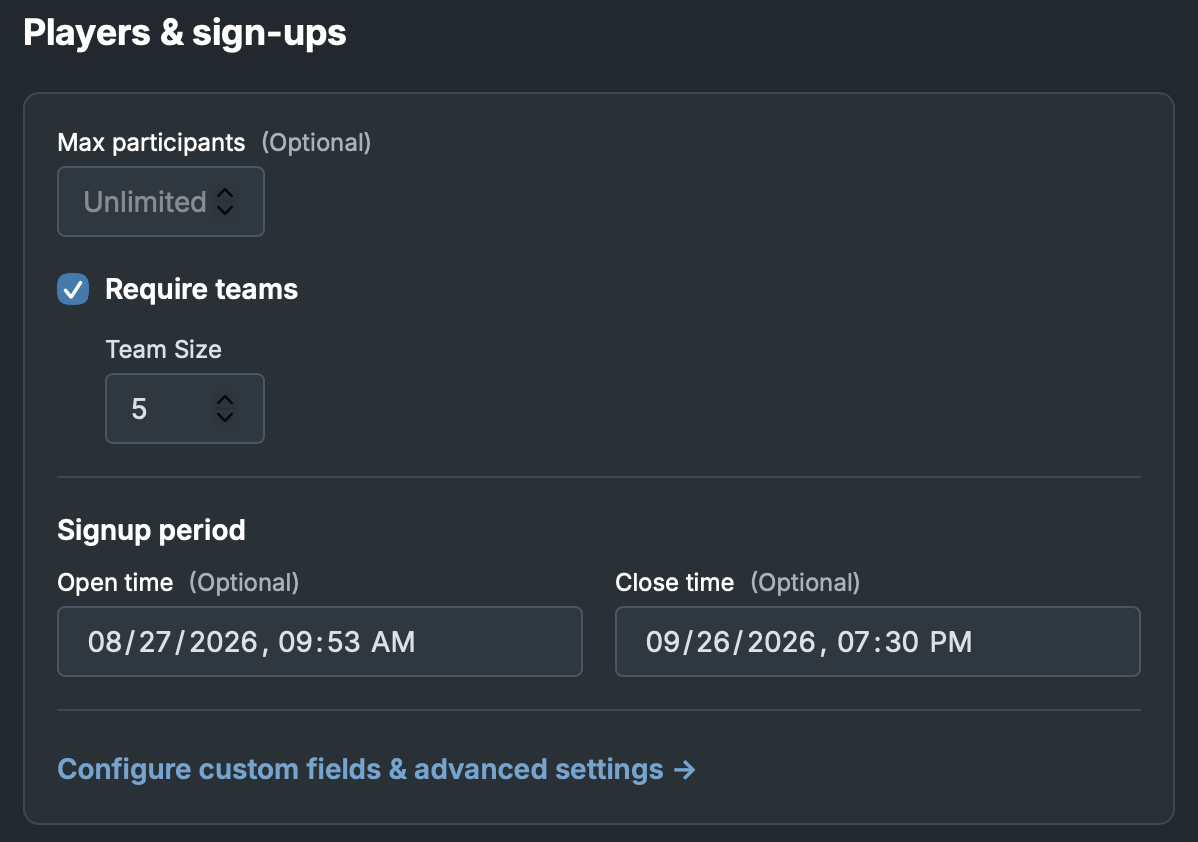
- Max players: Cap the number of players that can join your tournament
- Require teams: Whether to require players to sign up as a team instead of individually
- Team size: the minimum team size required
- Signup period: When to allow signups
Manual player entry
Adding players manually is required if “Signup link” is not checked. You must add all players in the tournament and the tournament will not have an intermediate signup step.
When “Signup link” is checked, adding players is optional. The signup list will be pre-populated with any players added here.
Public tournament
For public-facing tournaments, you can enable a landing page to promote your tournament. It is recommended to keep signup links enabled when enabling this setting since signing up is the primary call-to-action of the landing page. Enabling the public tournament setting also includes the tournament in your Community Hub.
Descriptive fields
In the details tab, there are many optional descriptive fields for the tournament. These fields are used in the public landing page and also when presenting the tournament in the Community Hub.
Accepting signups with a signup link
If you checked “Signup link” when starting the tournament, then you will be able to manage a virtual signup sheet. The primary advantage of accepting signups is that players can sign up with their player accounts to link their ranking in this tournament. You also can add guest players or teams (i.e. participants with no account) manually with their name.
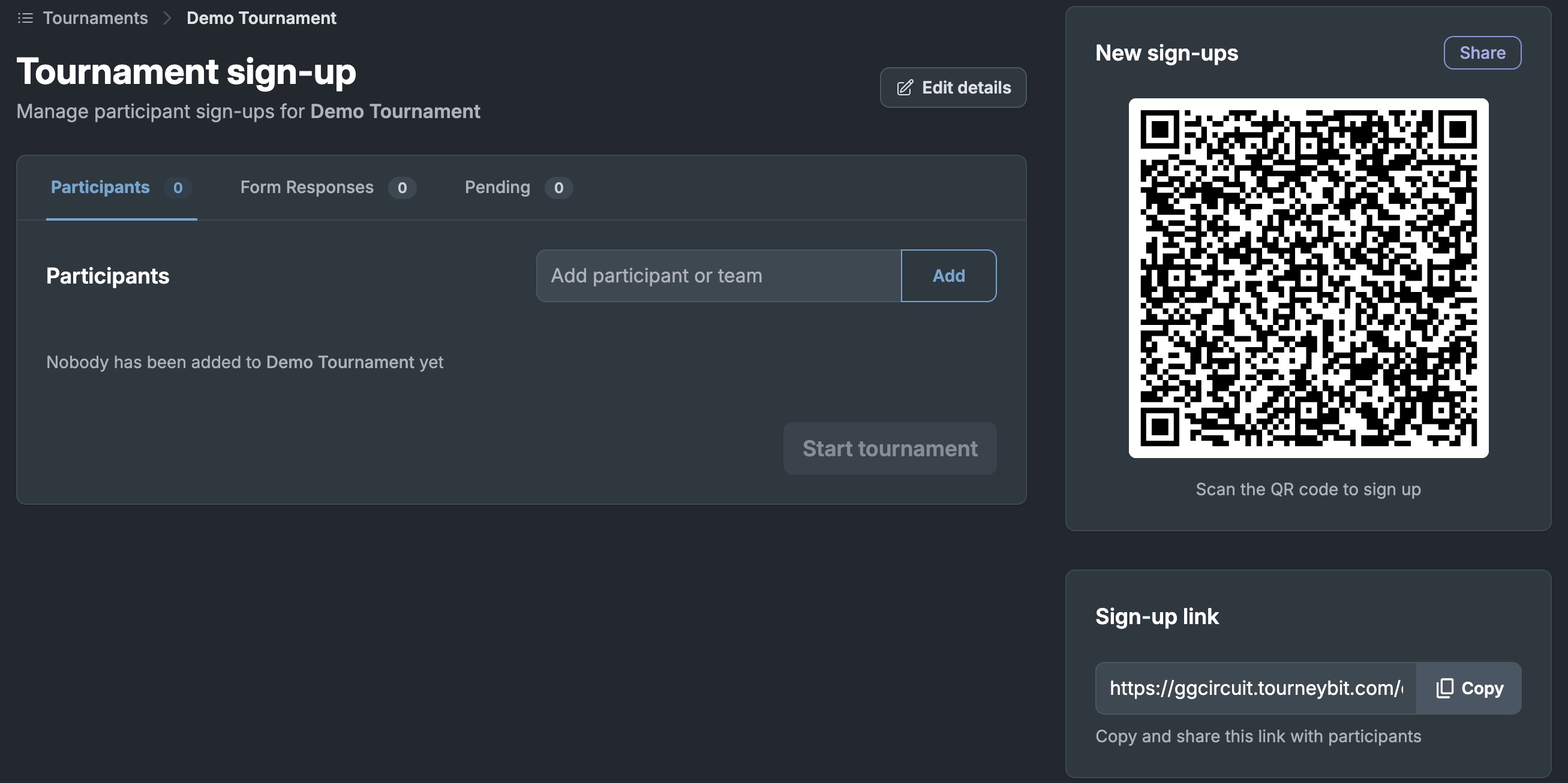
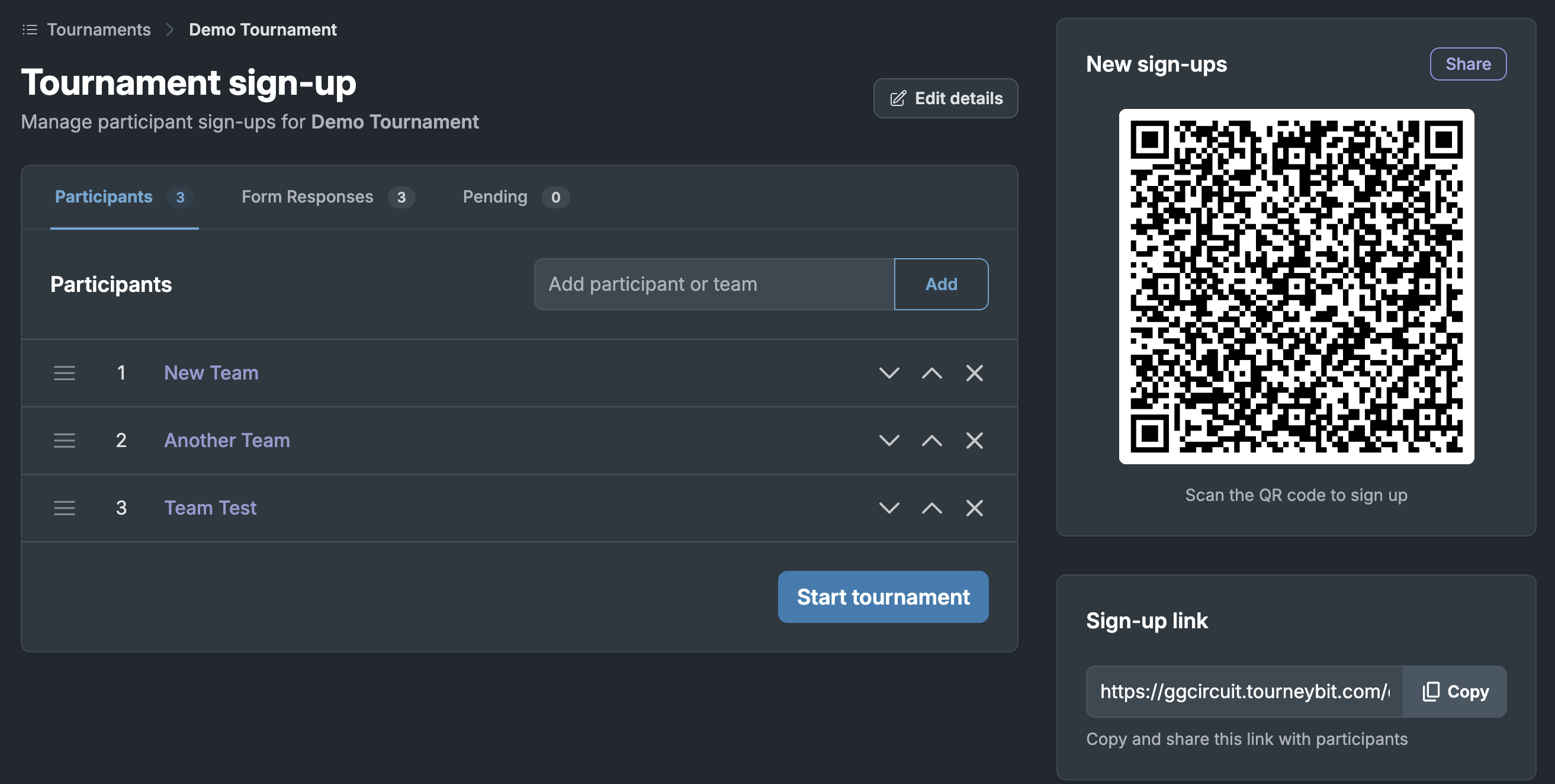
QR code and link
The QR code and link enables players to sign up with their ggLeap tournaments player profile. This account is typically linked to one or more ggLeap centers and signing up via this method automatically adds their result in the tournament to their account. Players can scan the QR code or you can share the link with players directly.
Adding and approving registration form responses
Registration form responses are collected in the “Form Responses” tab. Any form response not added to the tournament is shown in the “Pending” tab as well. You can promote registration form responses to official participants in the tournament with the “Add” button, and discard any spam or unneeded responses via the X icon.
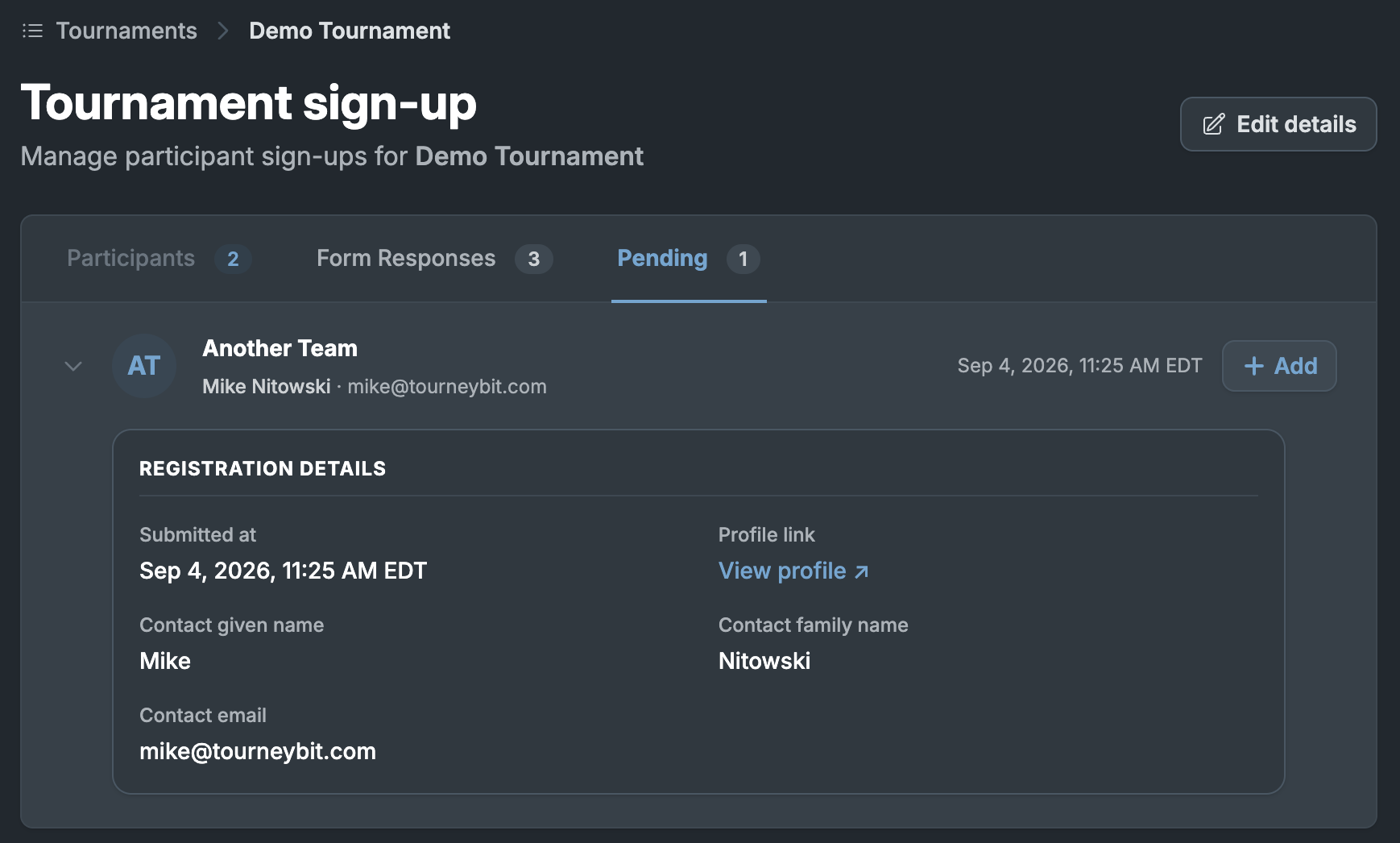
Player or team info including any profile links, contact information, and custom form field responses can be viewed in the “Form Responses” tab.
Editing a tournament
You can edit a tournament before starting it by pressing the “Edit details” button on the sign-up page. Nearly every setting when creating a tournament is editable, including the format and structure of the tournament. You can also modify the “Public tournament” toggle here, allowing you to make edits to the tournament before making it visible to the public.
Configuring the registration form
Every tournament with a signup link has an associated registration form for collecting registration information. This registration form has reasonable defaults for a basic registration form, though you may want to collect more information or restrict how players can sign up.
Finding registration form settings
Navigate to the tournament → press “Edit details” → scroll down to the “Players & sign-ups” → select “Configure custom fields & advanced settings”
Collecting additional information with custom form fields
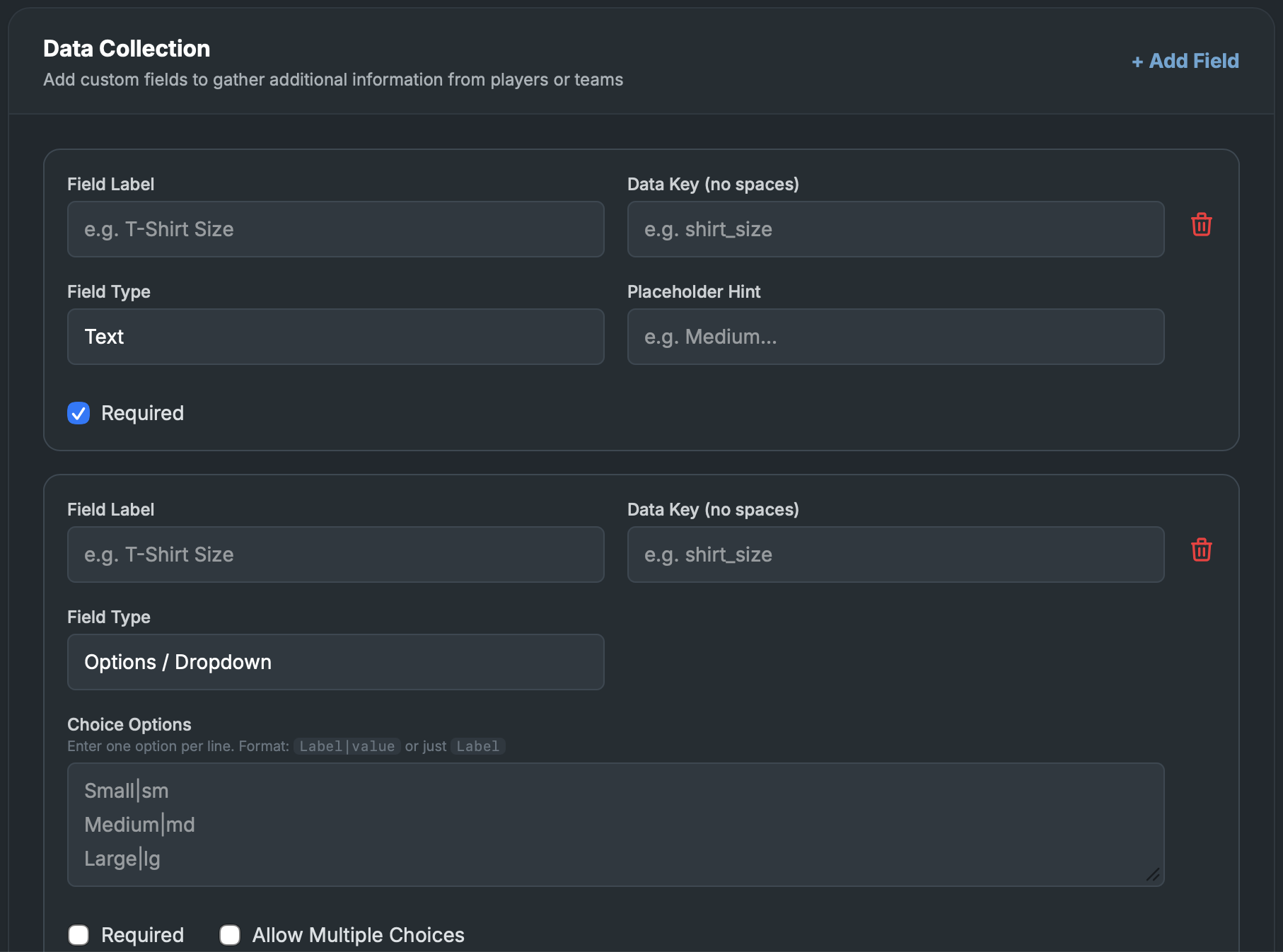
You can set up custom form fields to collect additional information from players, including basic text fields, dropdowns, and yes/no questions. Select “Add Field” in the data collection section to add and configure a new custom field. You can remove a field by pressing its associated trash can icon.
Advanced settings
Requiring player accounts for registration
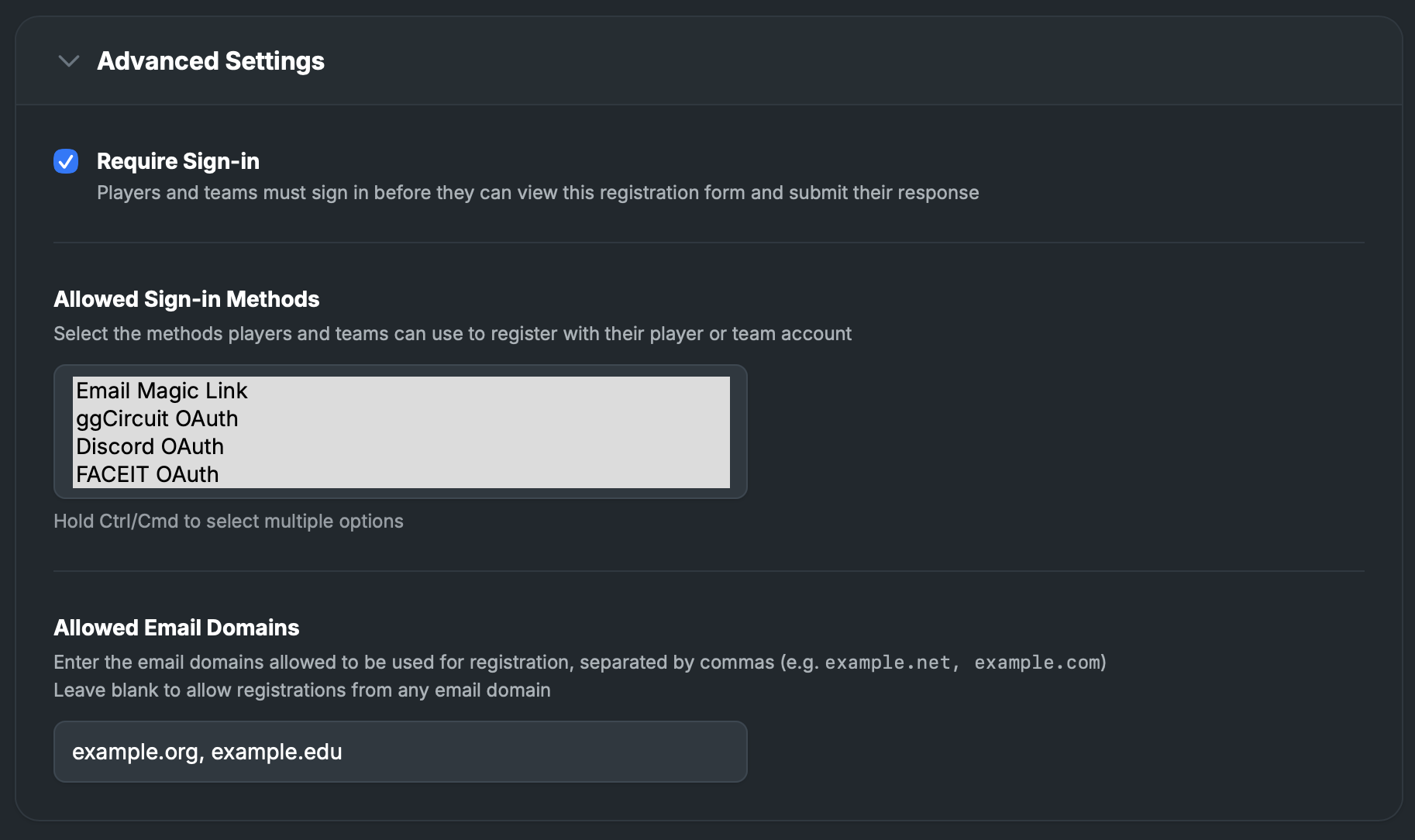
To prevent guest registrations and require players to be signed in to their player accounts in order to register for your tournament, you can select the “Require Sign-in” option.
Restricting sign-in methods
After selecting “Require Sign-in”, you can restrict how a player can sign in to register for your tournament to certain methods.
- Email magic link: the default way to sign in with a magic link emailed to the player
- ggCircuit OAuth: sign in via the player’s ggCircuit account tied to your center
- Discord OAuth: third-party sign-in with Discord
- FACEIT OAuth: third-party sign-in with FACEIT
Restricting email domains
You can restrict registration to only guests or accounts who have a specific domain associated with their email address. For example, you can limit registrations to only users with an example.edu email address.
To restrict to multiple domains, you can separate domains with a comma (e.g. example.edu, example.org).
By default (i.e. when this setting is empty), any email address can register.
IMPORTANT: Make sure to press “Update registration form settings” to save and apply your settings.
Promoting the tournament with a landing page and the Community Hub
When “Public tournament” is enabled, a landing page is automatically generated for your tournament using the tournament details you added. The primary call-to-action for the landing page is “Join tournament”, directing to the registration form for your tournament.
Promotional images
When setting up the tournament for the first time or in the “Edit tournament details” page, you can upload a hero image which is shown at the top of the landing page and as the thumbnail when the tournament is the featured tournament in the Community Hub. The “most upcoming” tournament (in terms of the start date) is featured at the top of the Community Hub.
You can also upload a social sharing image that is used when the page is shared via social media or in messaging apps. It is displayed as the thumbnail within the general tournament list in the Community Hub.
Structured descriptions
The description field supports Markdown to create rich, structured descriptions for the landing page and in other contexts like the registration form.
SEO, AEO, and discoverability
The landing page automatically has structured metadata crucial for SEO and AI discoverability. This machine-readable data includes descriptive HTML meta tags, OpenGraph metadata, and an associated SportsEvent JSON-LD schema.
Accessing your Community Hub
The link to the Community Hub is on the main dashboard page. The link button will only be active if you have at least one tournament that is currently public, though the link will remain active even if there are no upcoming public tournaments.
Starting the tournament
Once you are ready, you can press “Start tournament” to close the sign-up process and begin the tournament.
Running the tournament
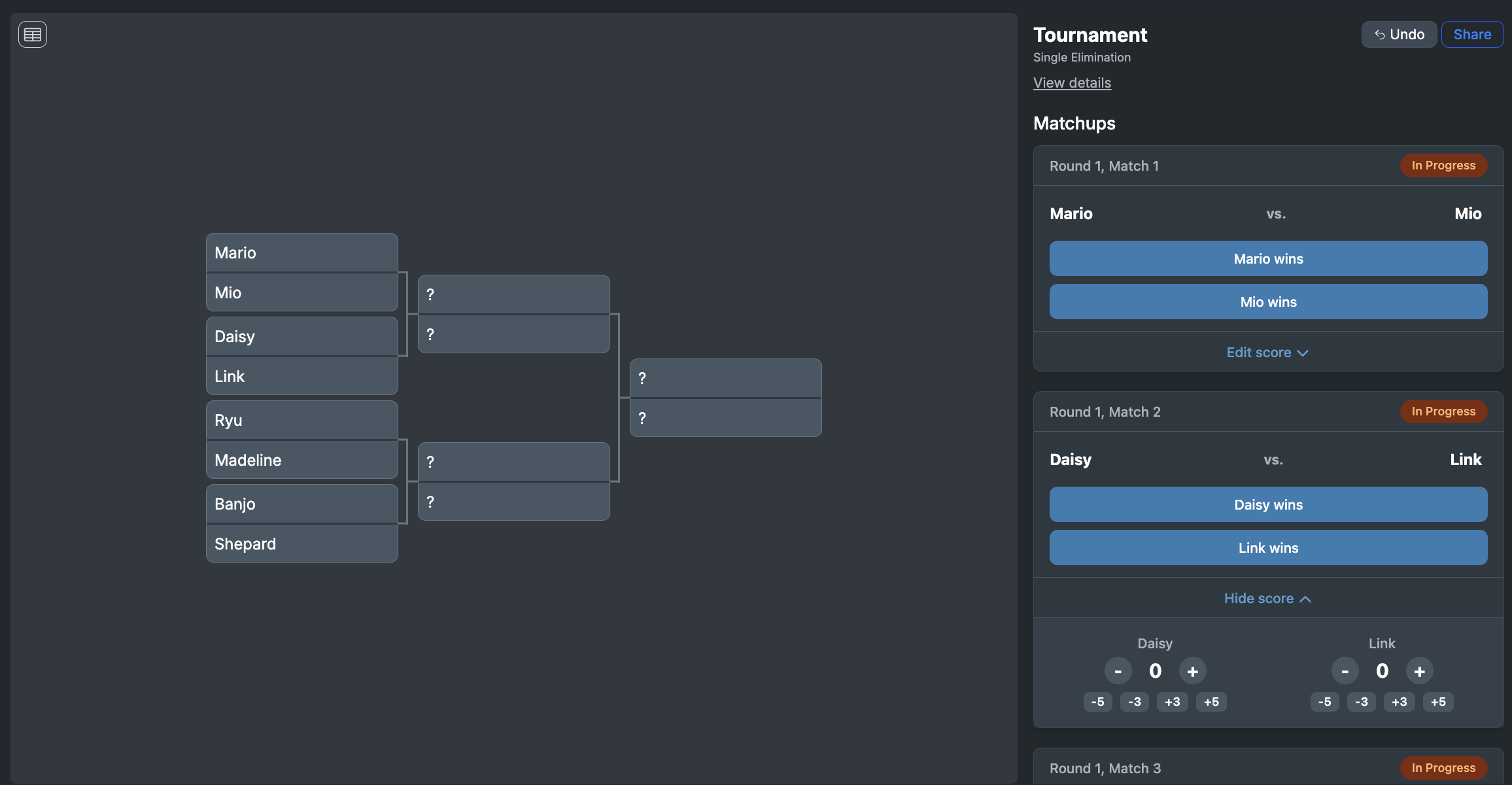
The initial matchups in the tournament will be determined based on the chosen format and seeding (if relevant). An administration or organizer can keep score and select winners while running the tournament. The tournament platform will automatically determine subsequent matchups based on wins according to the format details. These matchups will also be presented with a suggested number/order to keep the tournament running smoothly without bottlenecks.
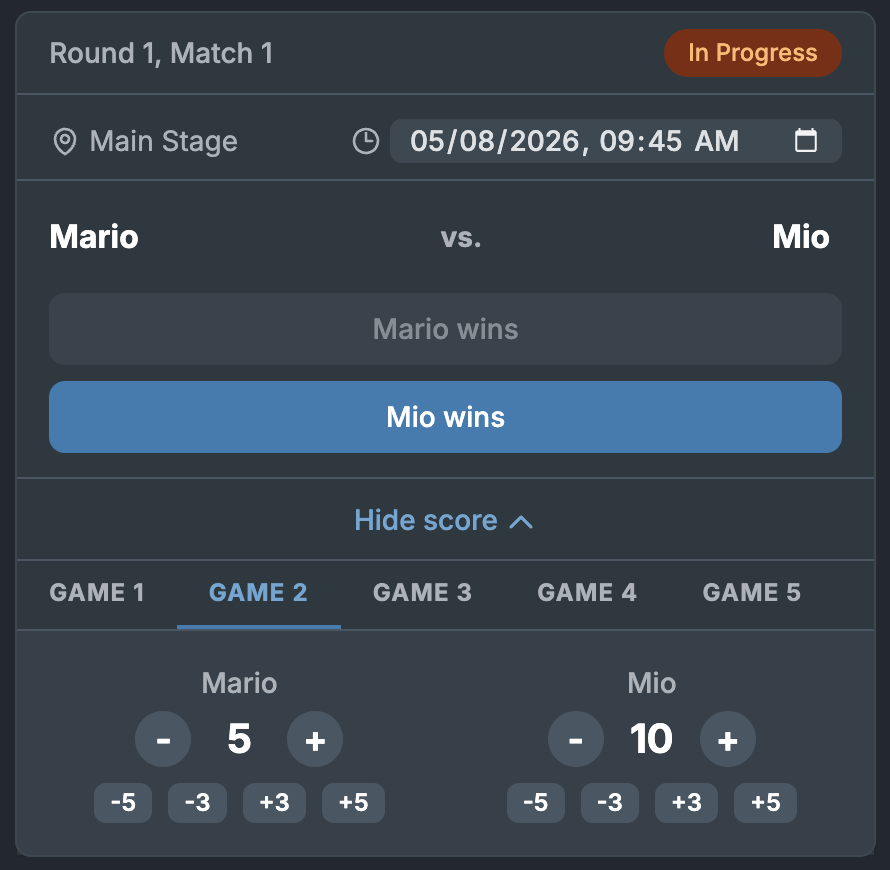
Best-of series
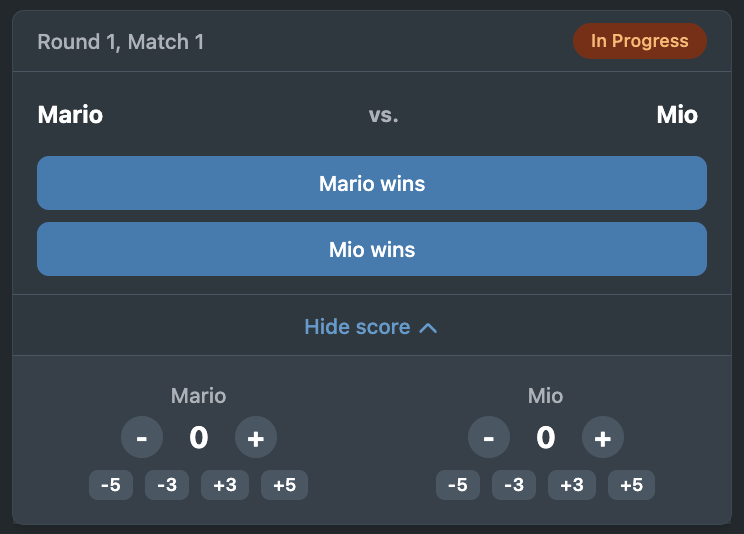
If you set games per match to be greater than 1, you will be able to set the score for each game in the series. When finalizing the winner (i.e. pressing “Player wins”), the overall score will be updated to the match record.
Scheduling matches
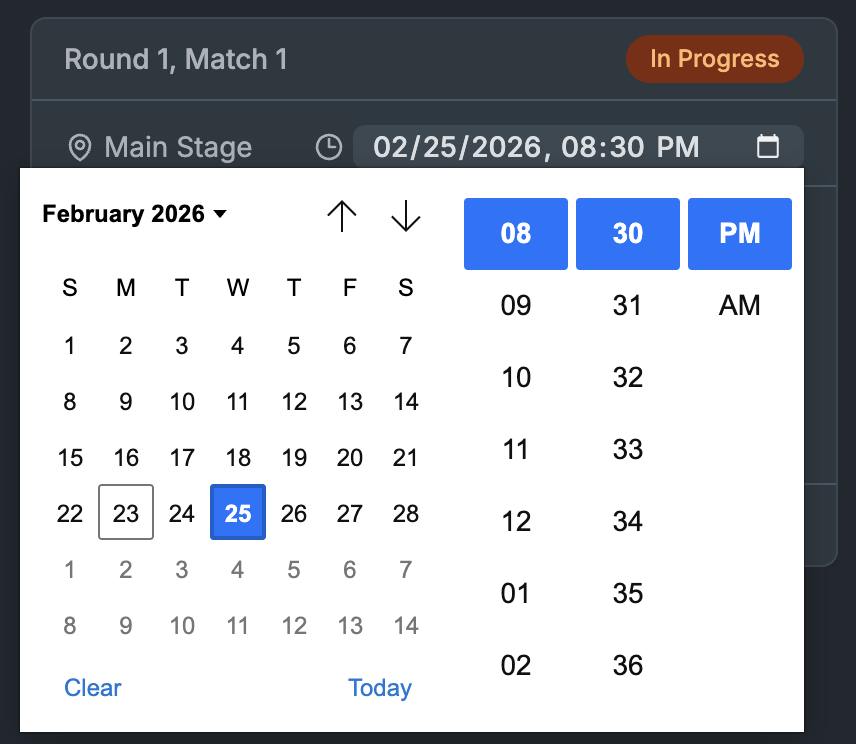
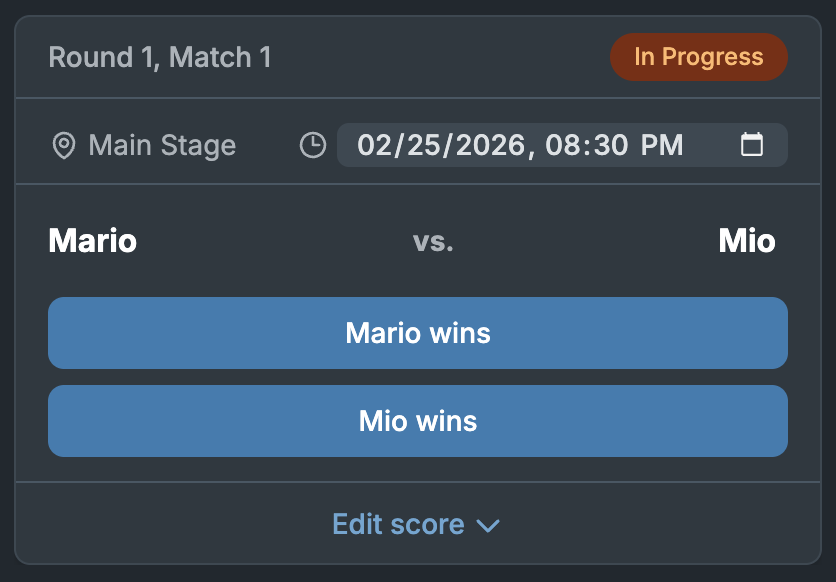
You can schedule matches if you set a start date and checked the “Schedule matches” checkbox when setting up the tournament. These scheduled times will appear in the read-only/share view. For multi-day tournaments, the matches will also appear on the calendars of any linked teams or player profiles.
Sharing/displaying the tournament
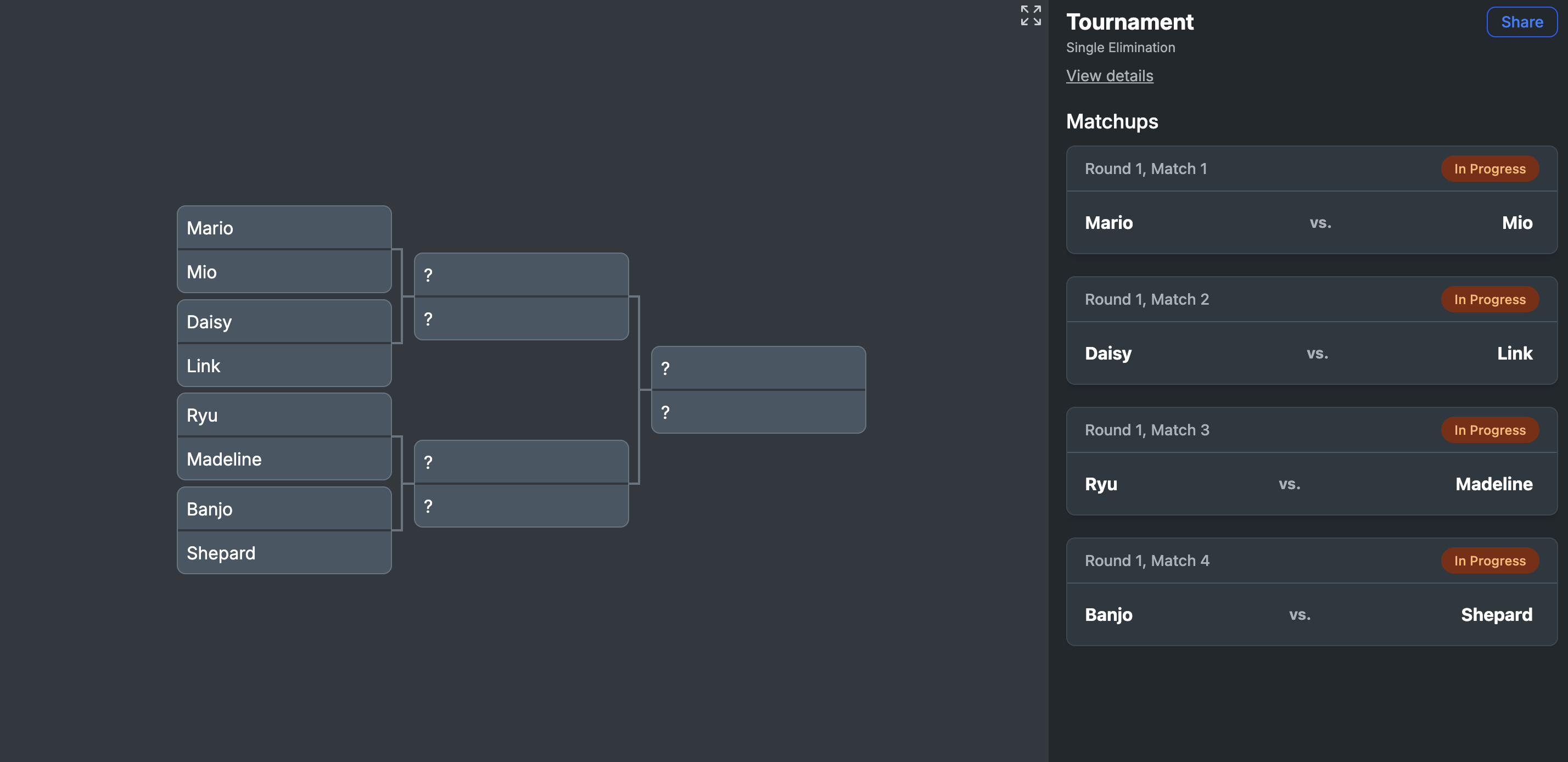
You can share a read-only link to the tournament with players or an audience by pressing the “Share” button in the top-right corner. It will prompt you with a list of options for sharing. If you just want to open the read-only link directly, you can right click the “Share” button. This view will update live as the tournament progresses.
Showing the bracket only
You can click the expand icon in the top right corner to only show the bracket and not the matchup list.
Undoing individual results
You can undo declaring a player the winner by using the “Undo” button in the top right corner.
Resetting the bracket and all match results
You can fully reset the tournament and clear all match results by navigating to “View details” and pressing the “Reset” button.
Determining rankings and viewing history
To determine rankings during or after the tournament, you can press “View details” from the main tournament view. Rankings update as players are eliminated from the tournament.
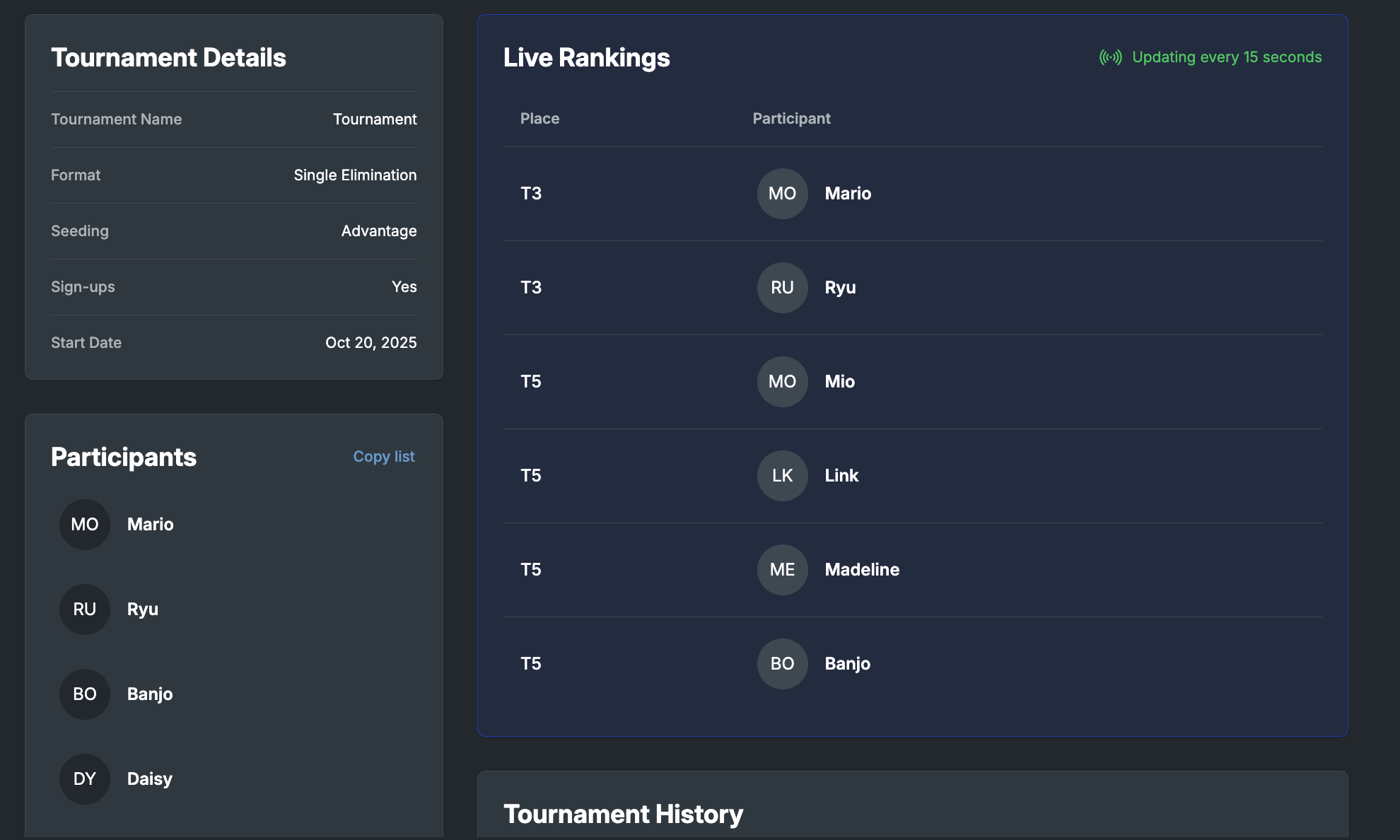
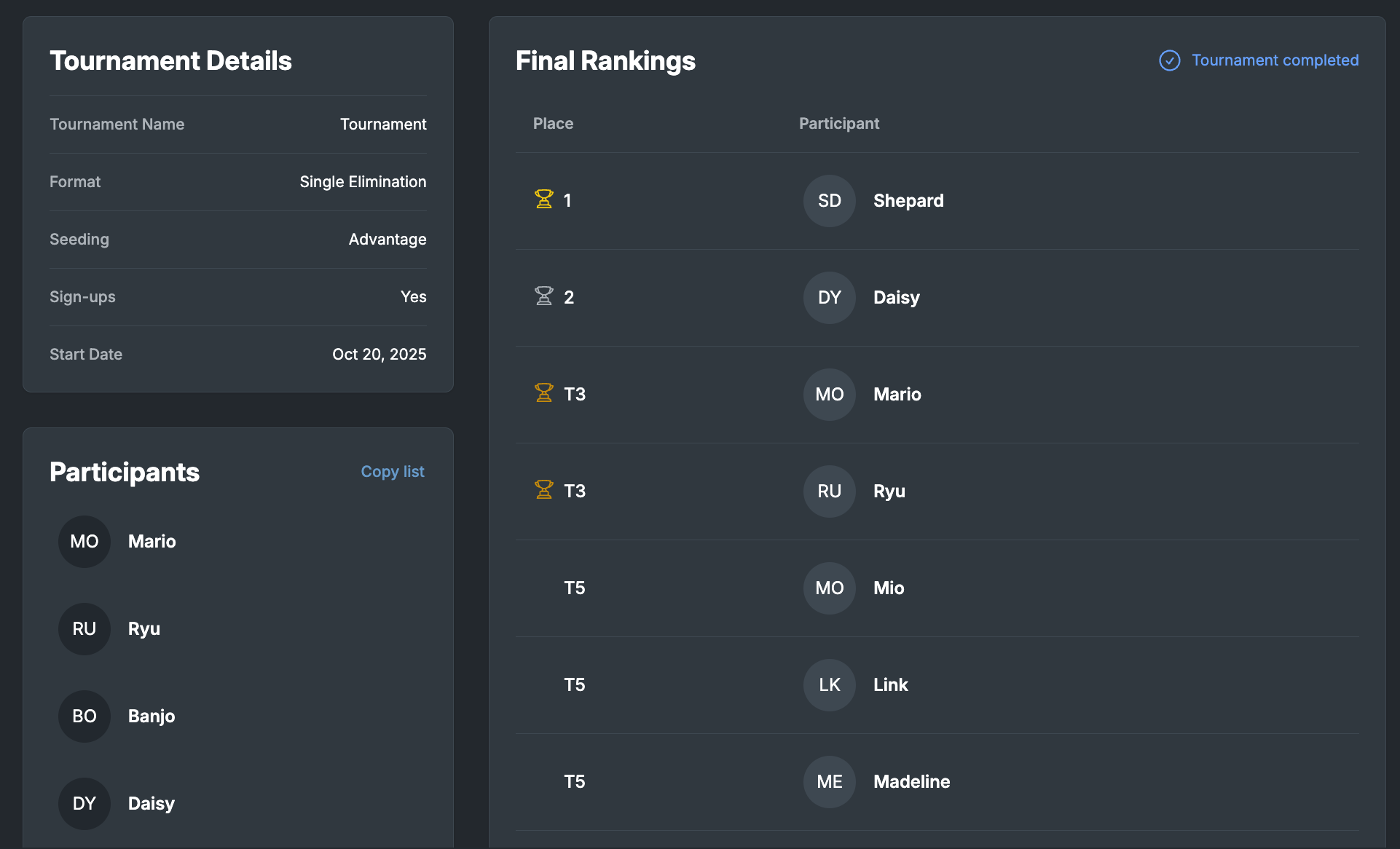
You can also view tournament history, metadata, and players in this view.
Exporting tournament data
To export tournament data, navigate to “View details” and press “Export” to select a data format.
You can export the tournament as JSON (in the canonical data format), JSON-LD (as the SportsEvent schema), or as an Excel workbook (a .xlsx spreadsheet file).
Revisiting tournaments
You can revisit tournaments as an organizer/admin via the tournament list accessible from Tournaments tab in ggLeap. Completed tournaments will also be included in this list. Completed tournaments are also accessible indefinitely via their read-only link and via the player profiles of tournament players, displaying their placement/ranking in the tournament.
Tournament API
There is a tournament API available for organizers to integrate tournaments with other platforms and systems. Contact tournament@ggcircuit.com or api@tourneybit.com for more information.
Player Profiles and Team Management
Refer to the Managing player profiles and teams for tournaments in ggLeap article.